Setting up your NetSuite account for the OpenEnvoy integration
Last updated: October 28, 2026
Follow these steps to connect NetSuite to OpenEnvoy. You'll enable a few NetSuite features, create a dedicated API role and user, create an integration record, and then authorize OpenEnvoy.
Before you start
You need NetSuite Administrator access.
Set aside about 20 minutes.
Decide which NetSuite user OpenEnvoy will connect as. We recommend a dedicated employee record.
Step 1: Enable the required features
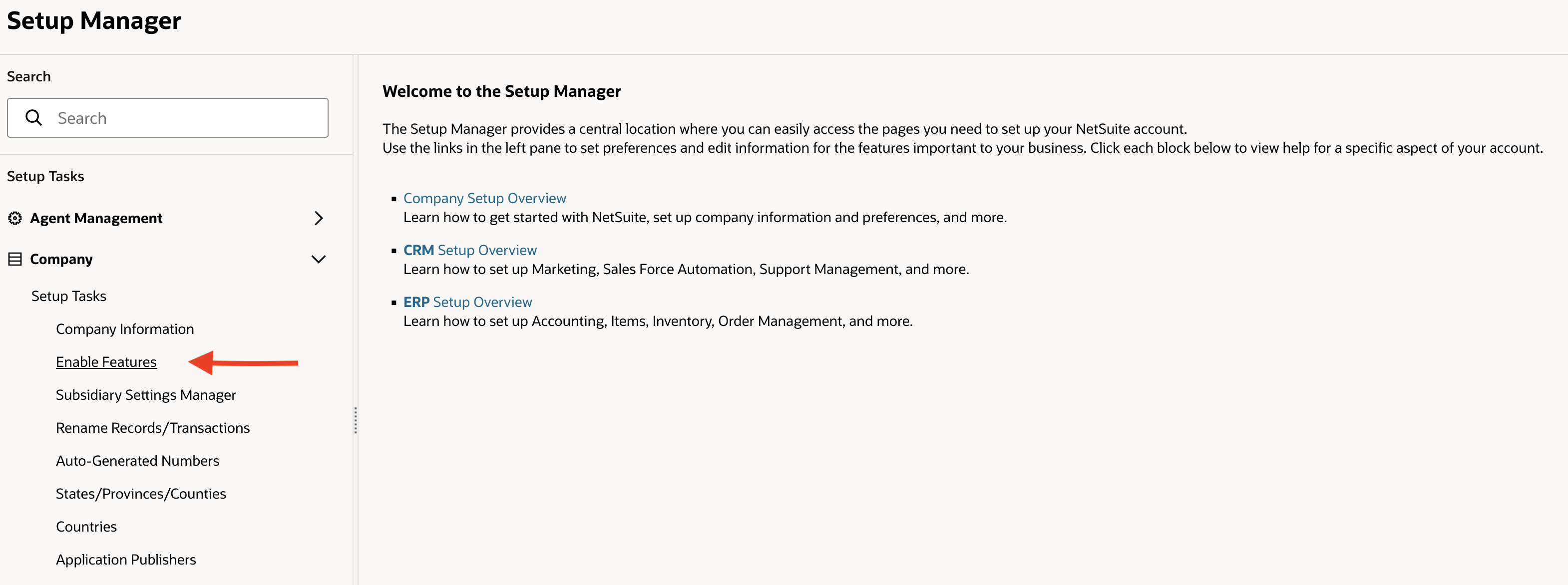
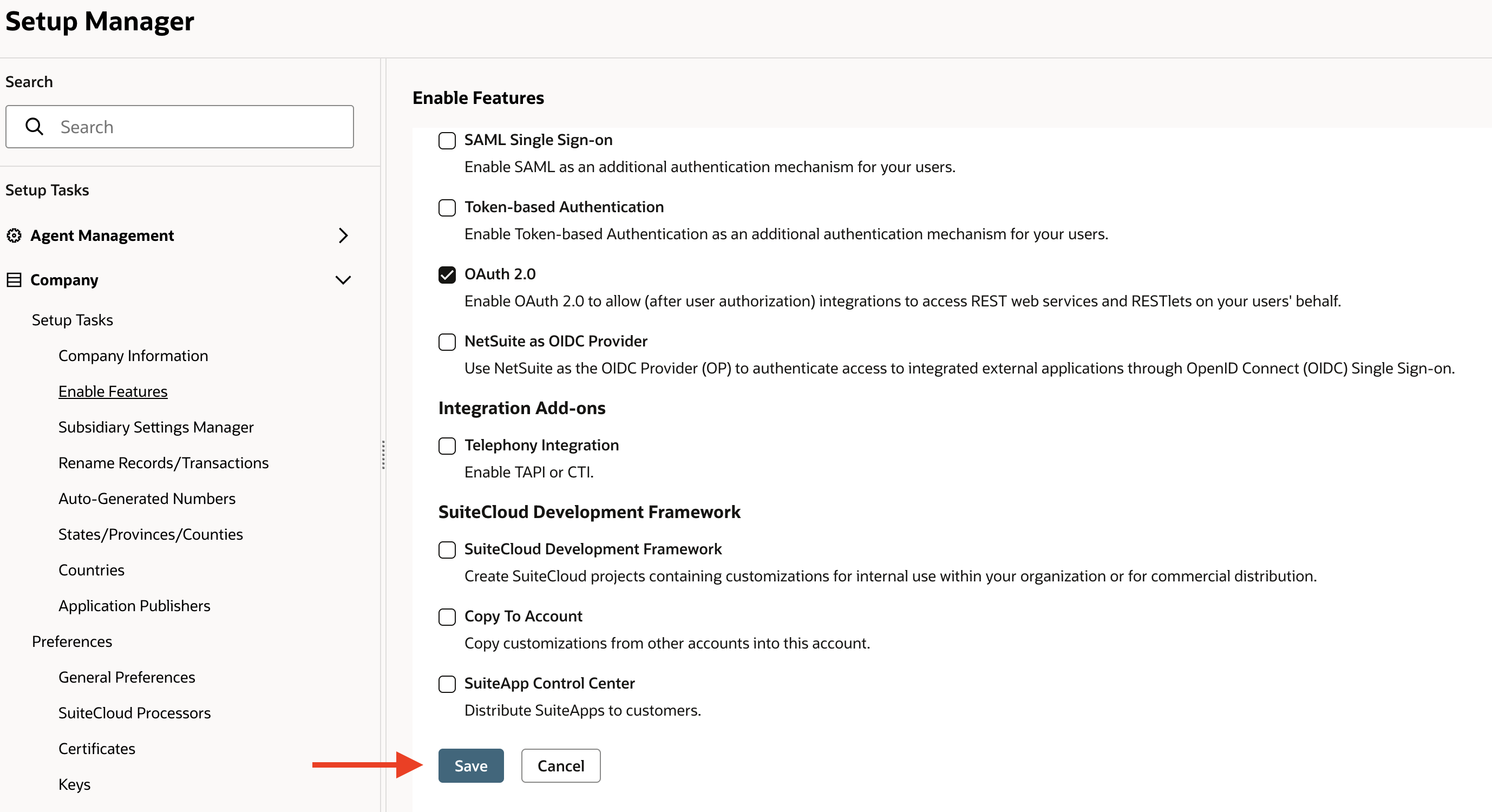
Go to Setup > Company > Setup Tasks > Enable Features. You can also go to Setup > Setup Manager and click Enable Features.

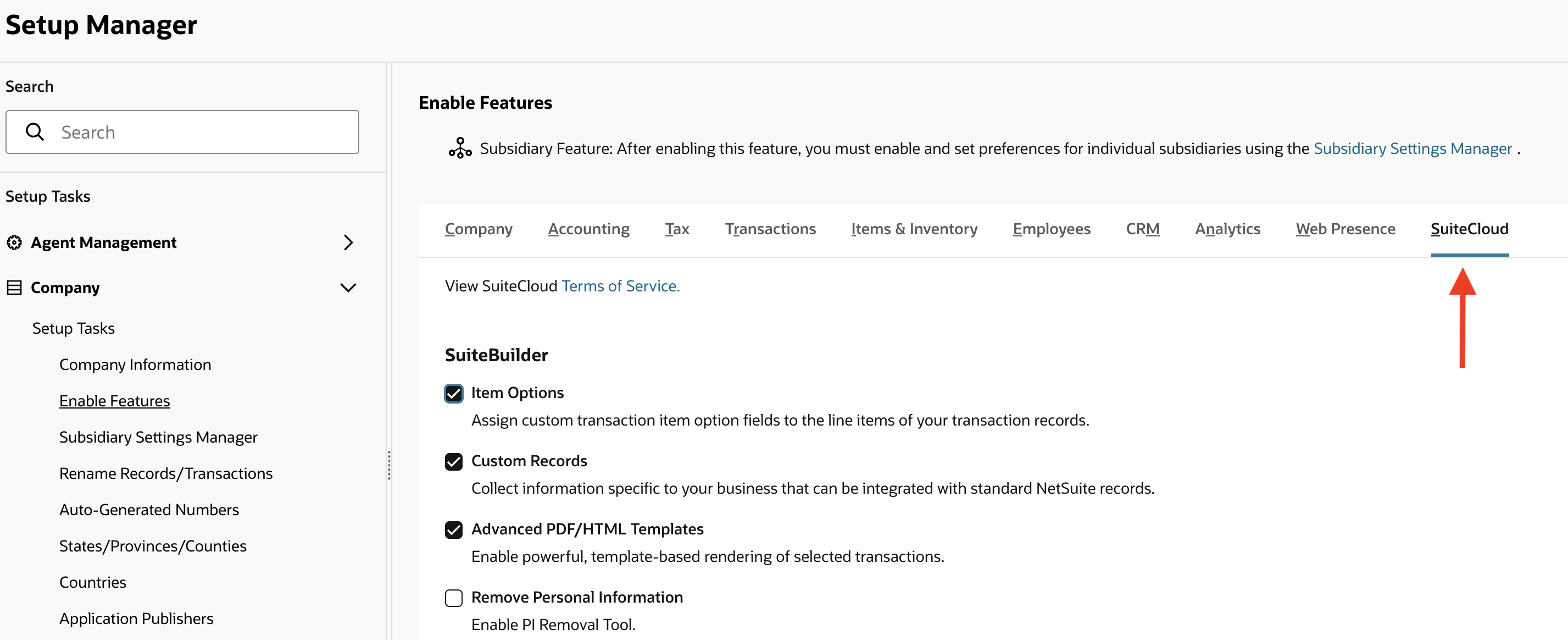
Open the SuiteCloud tab.
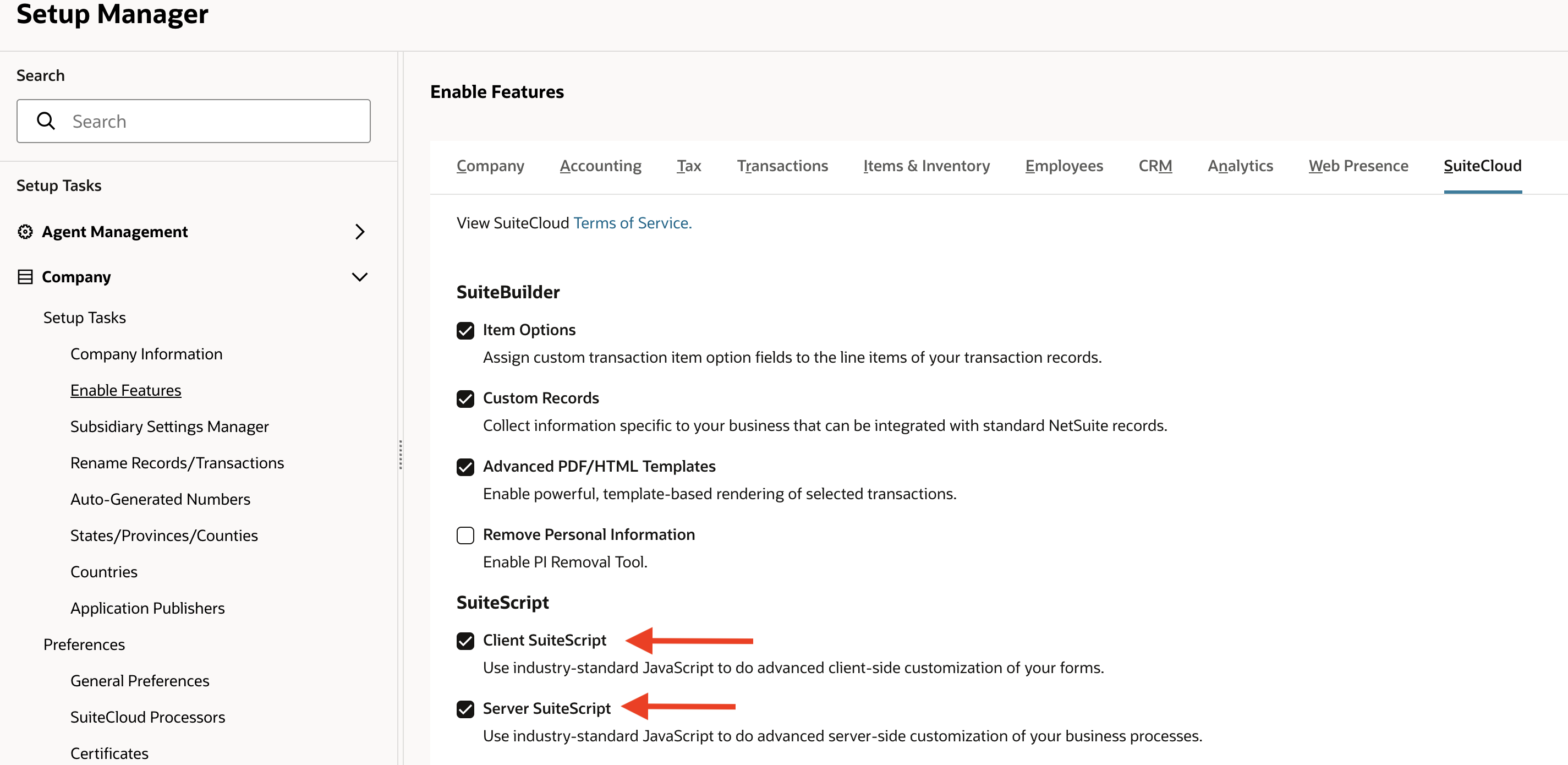
Under SuiteScript, check Client SuiteScript and Server SuiteScript. Click I Agree on each Terms of Service prompt.
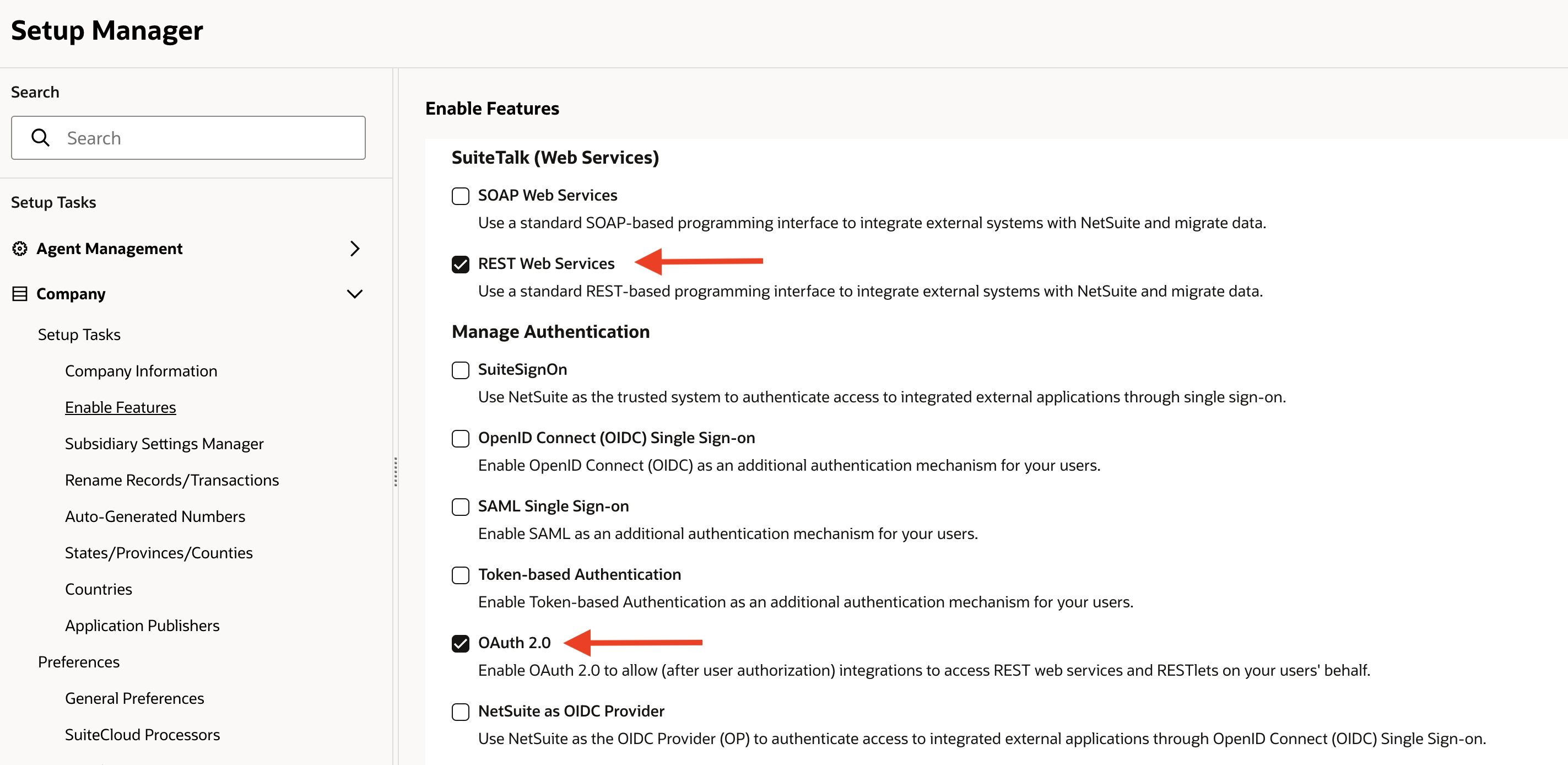
Under SuiteTalk (Web Services), check REST Web Services.
Under Manage Authentication, check OAuth 2.0. Click I Agree on the Terms of Service prompt.
Click Save.
Step 2: Create the OpenEnvoy API role
Go to Setup > Users/Roles > Manage Roles > New.
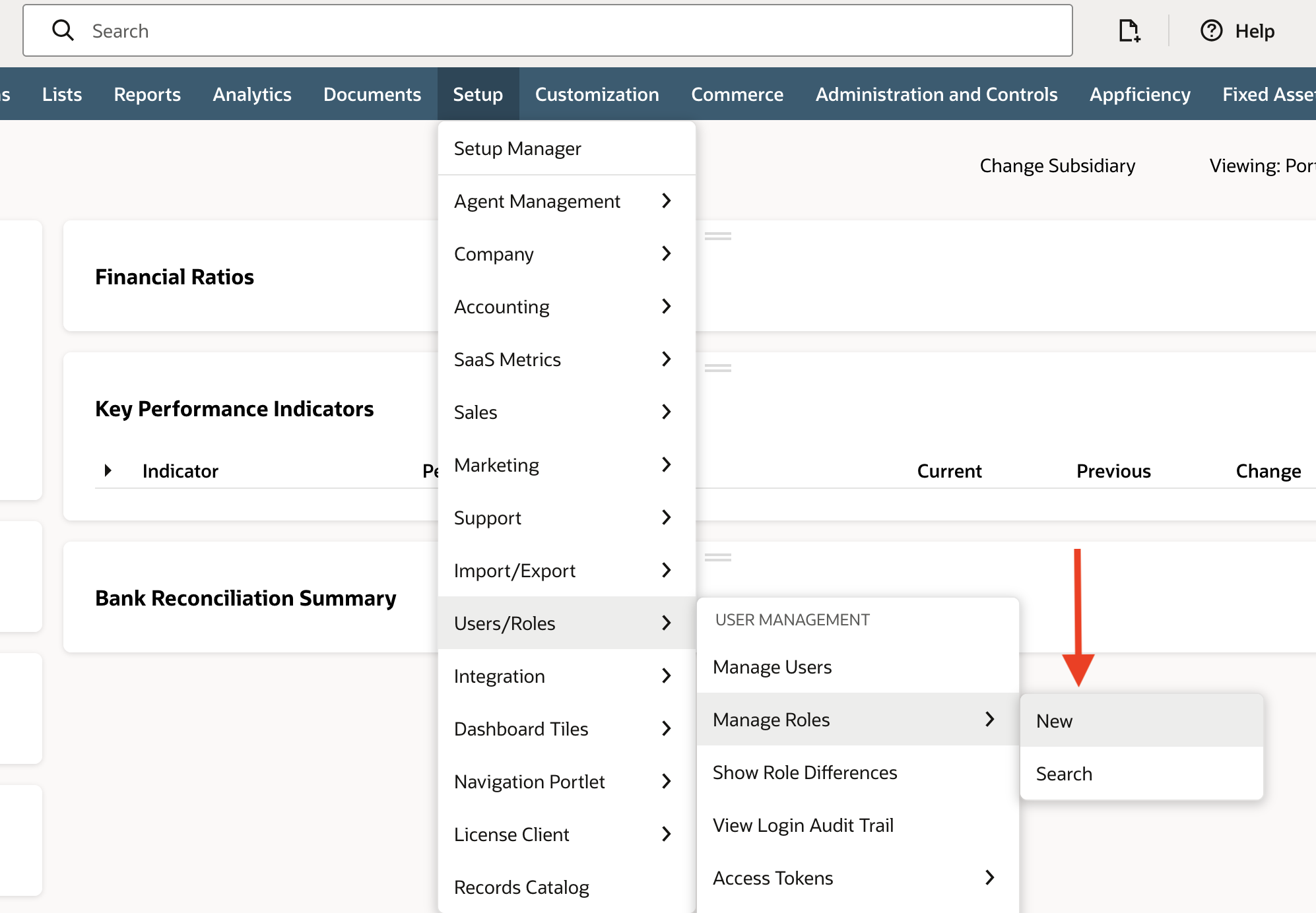
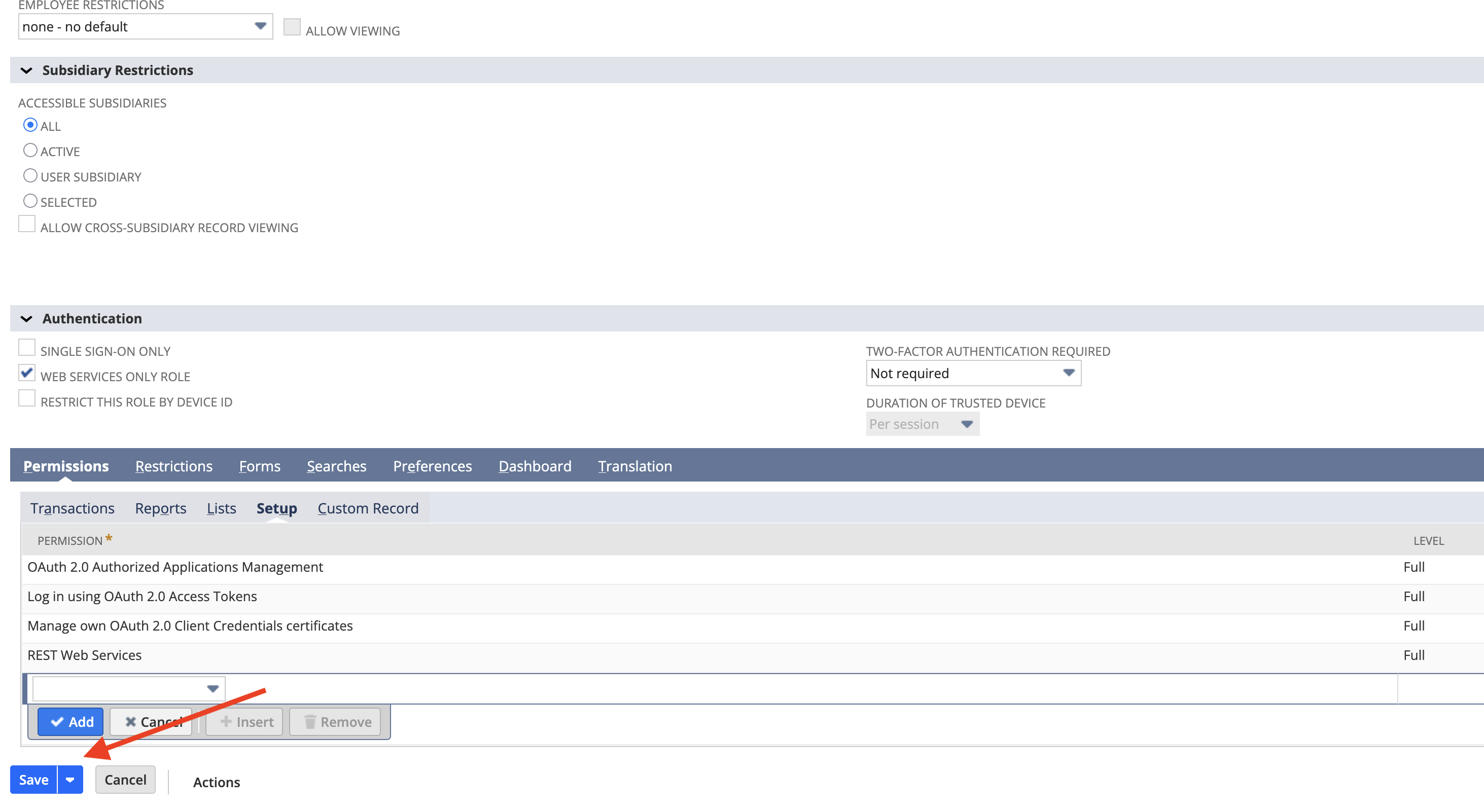
Set the role up as follows:
Field | Value |
|---|---|
Name |
|
Web Services Only Role | Checked |
Employee Restrictions | none - no default |
Two-Factor Authentication Required | Not required |
Subsidiary Restrictions | All (OneWorld accounts only) |
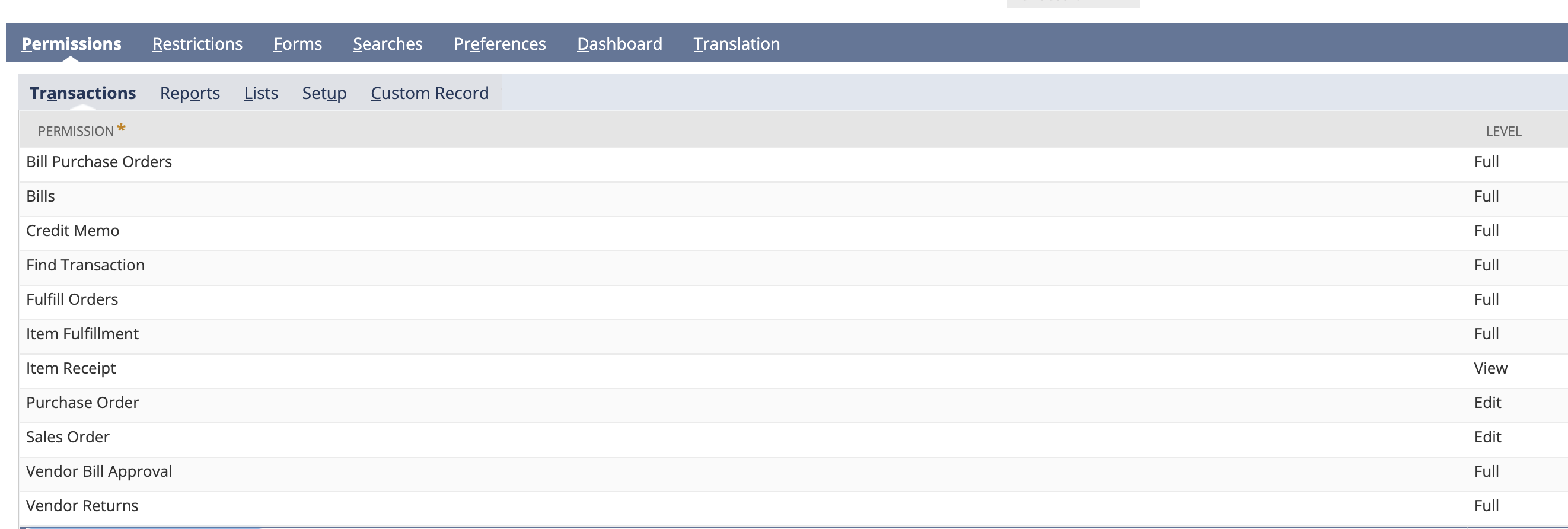
On the Permissions tab, add these permissions on each sub-tab:
Transactions
Permission | Level |
|---|---|
Bill Purchase Orders | Full |
Bills | Full |
Credit Memo | Full |
Find Transaction | Full |
Fulfill Orders | Full |
Item Fulfillment | Full |
Item Receipt | View |
Purchase Order | Full |
Sales Order | Full |
Vendor Bill Approval | Full |
Vendor Returns | Full |
Reports
Permission | Level |
|---|---|
Account Details | View |
SuiteAnalytics Workbook | Edit |

Lists
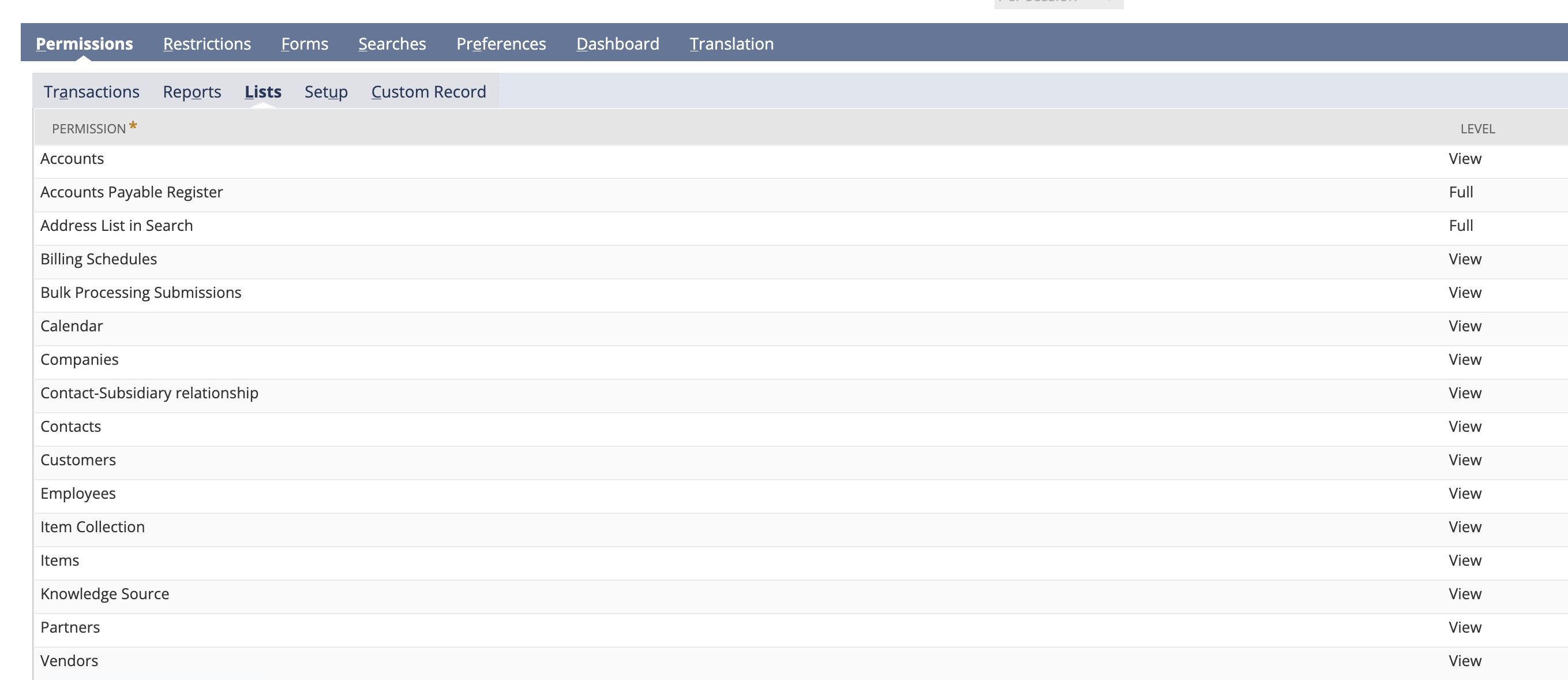
Setup

Click Save.
Step 3: Assign the role to the OpenEnvoy user
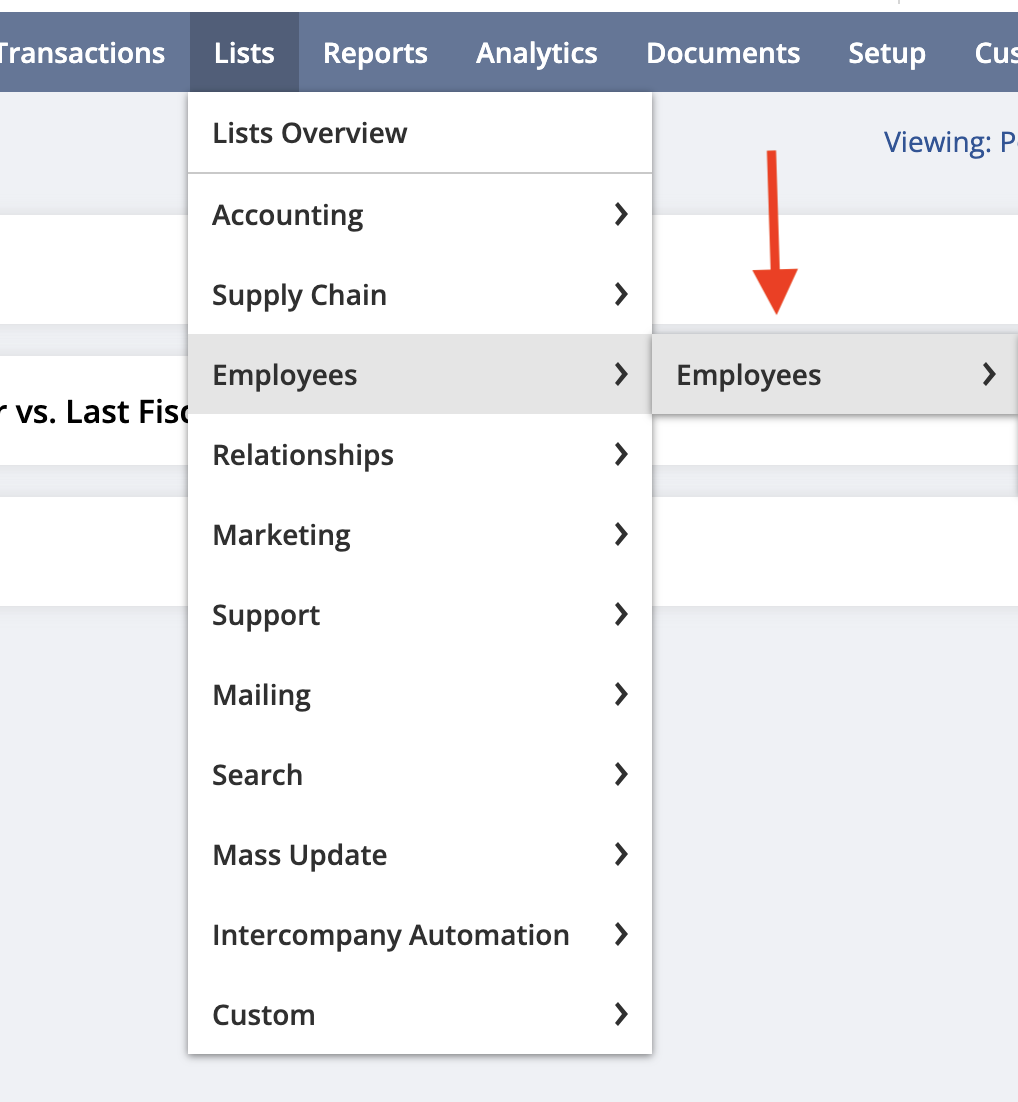
Open the user's record:
Employees: Lists > Employees > Employees
Customers, partners, or vendors: Lists > Relationships, then choose the record type.
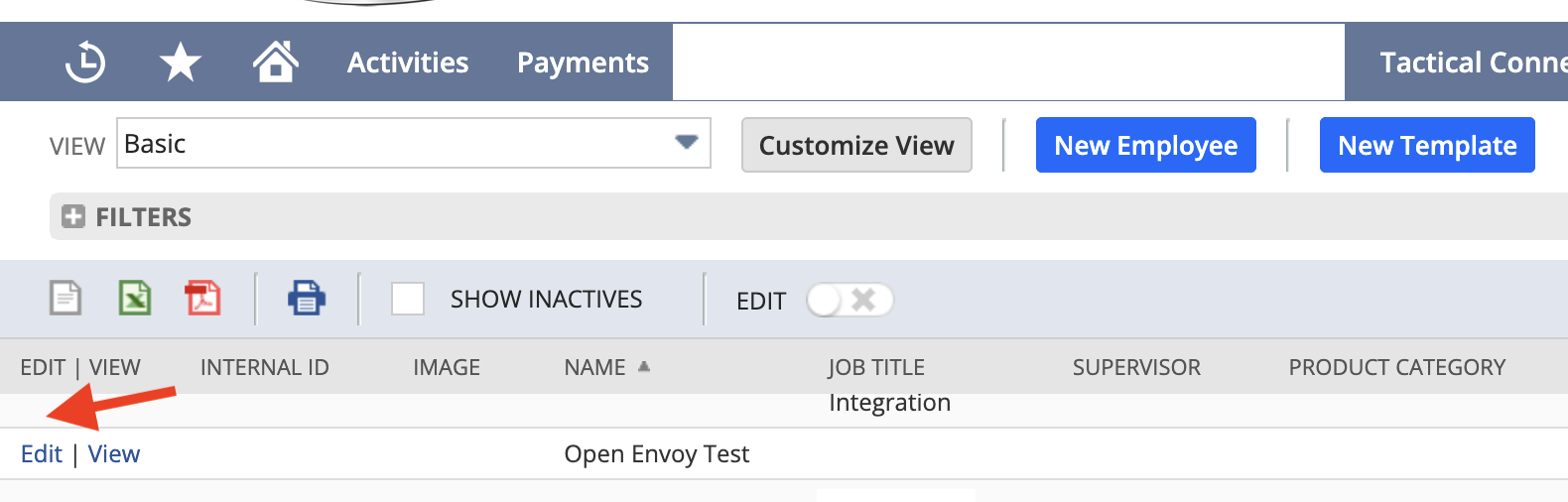
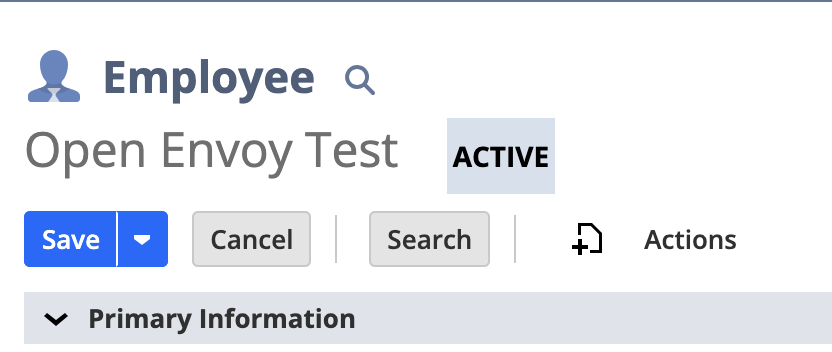
Click Edit next to the user.
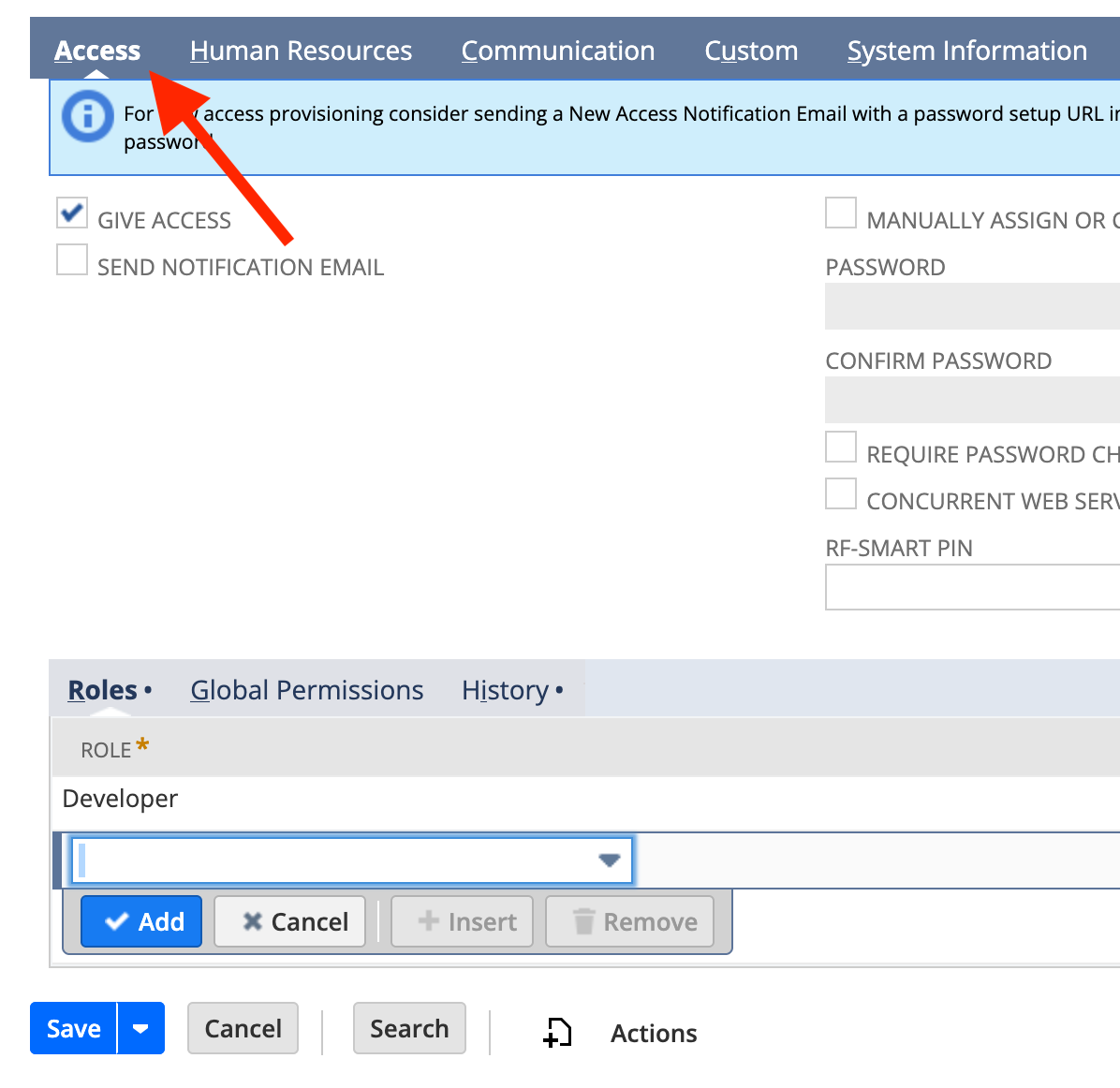
Open the Access tab, then the Roles sub-tab.
In Role, select
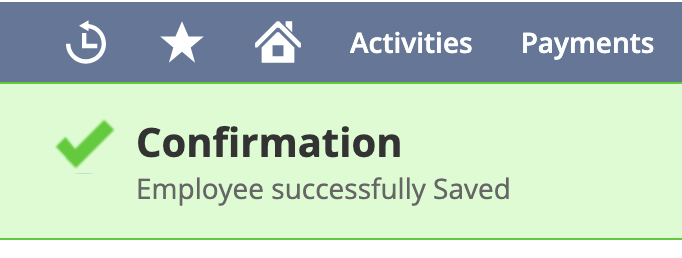
OpenEnvoy API Role. Click Add, then Save.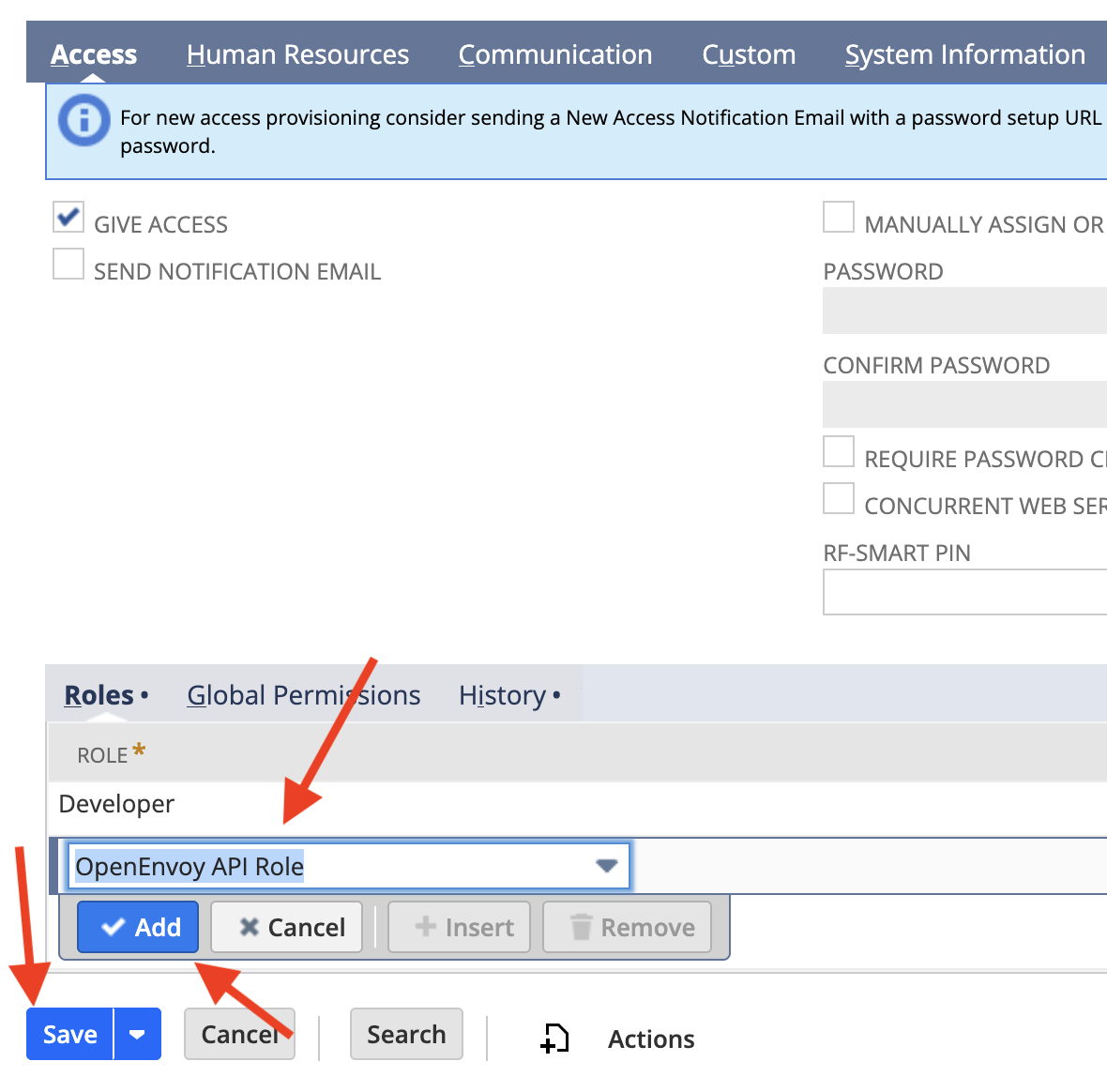
Step 4: Create the integration record
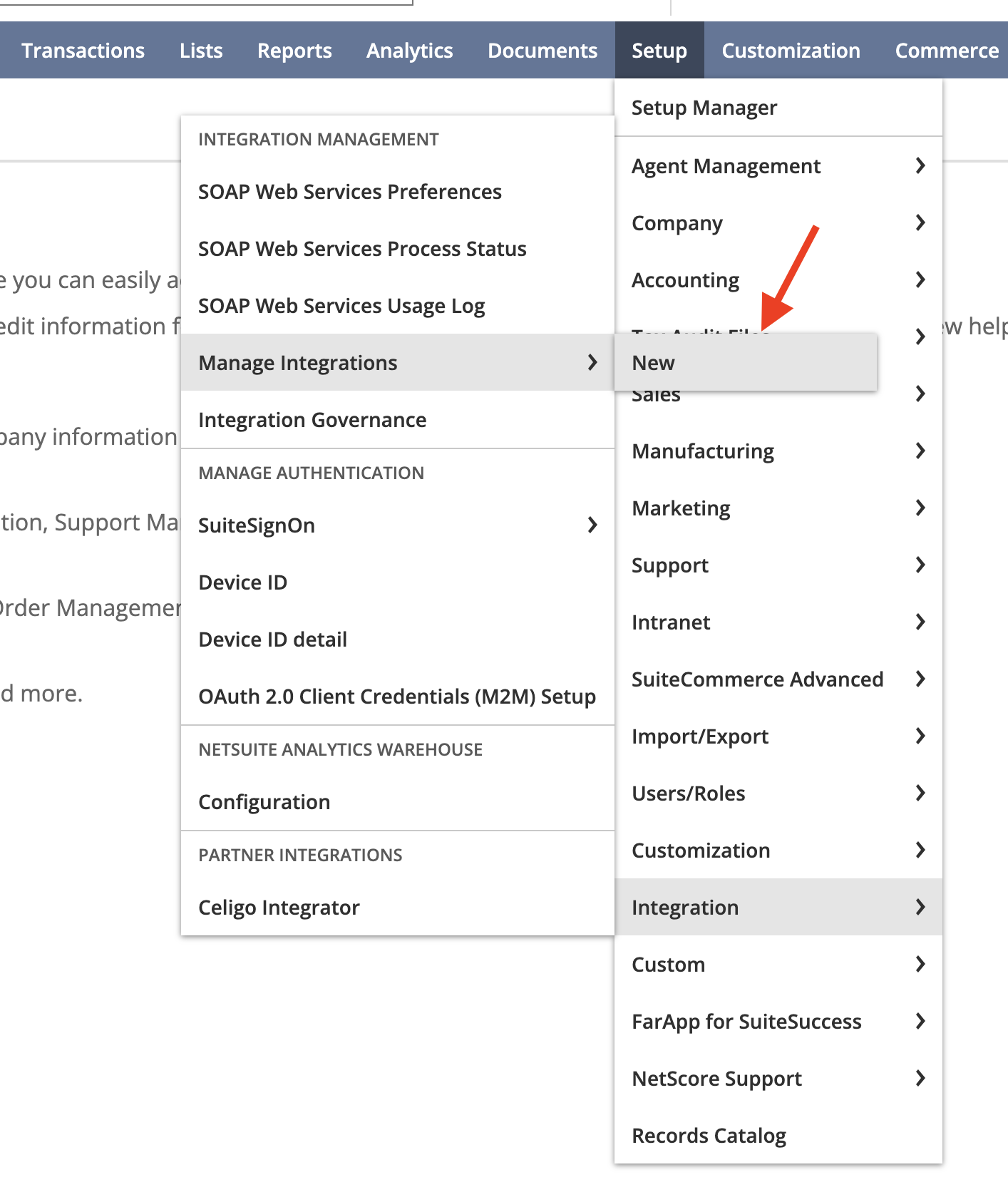
Go to Setup > Integration > Manage Integrations > New.
Set Name to
OpenEnvoy Integration Recordand State to Enabled.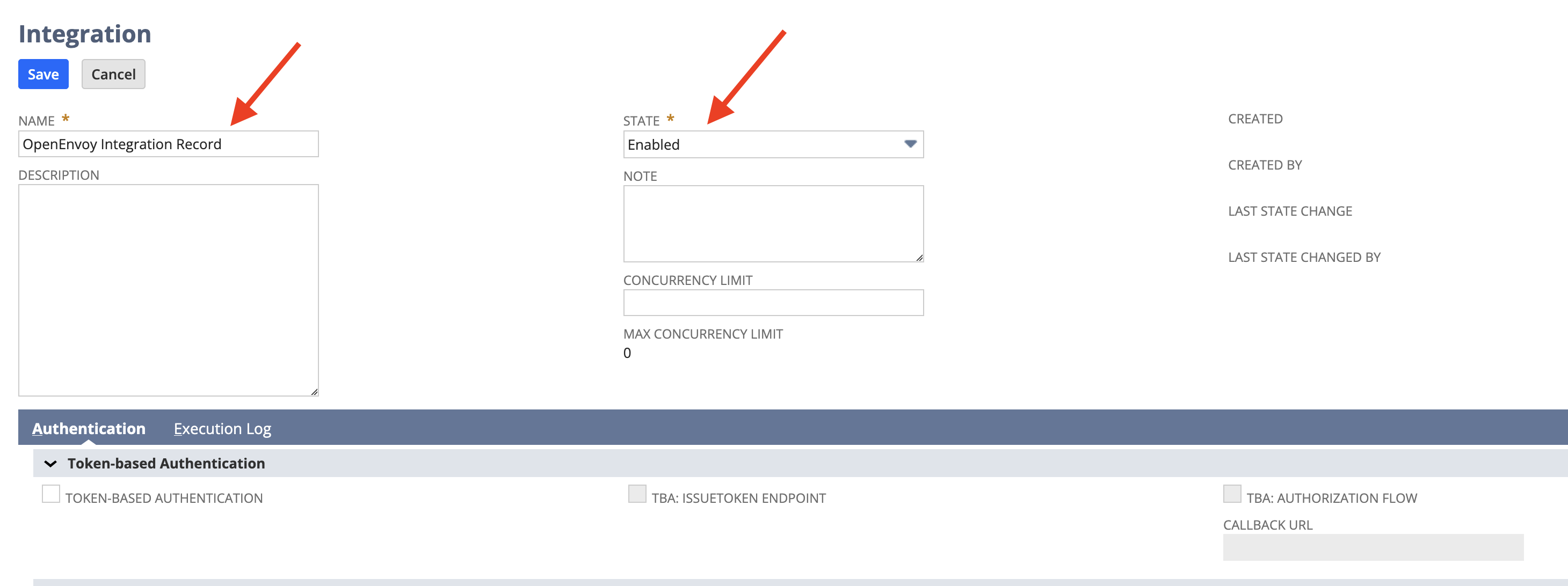
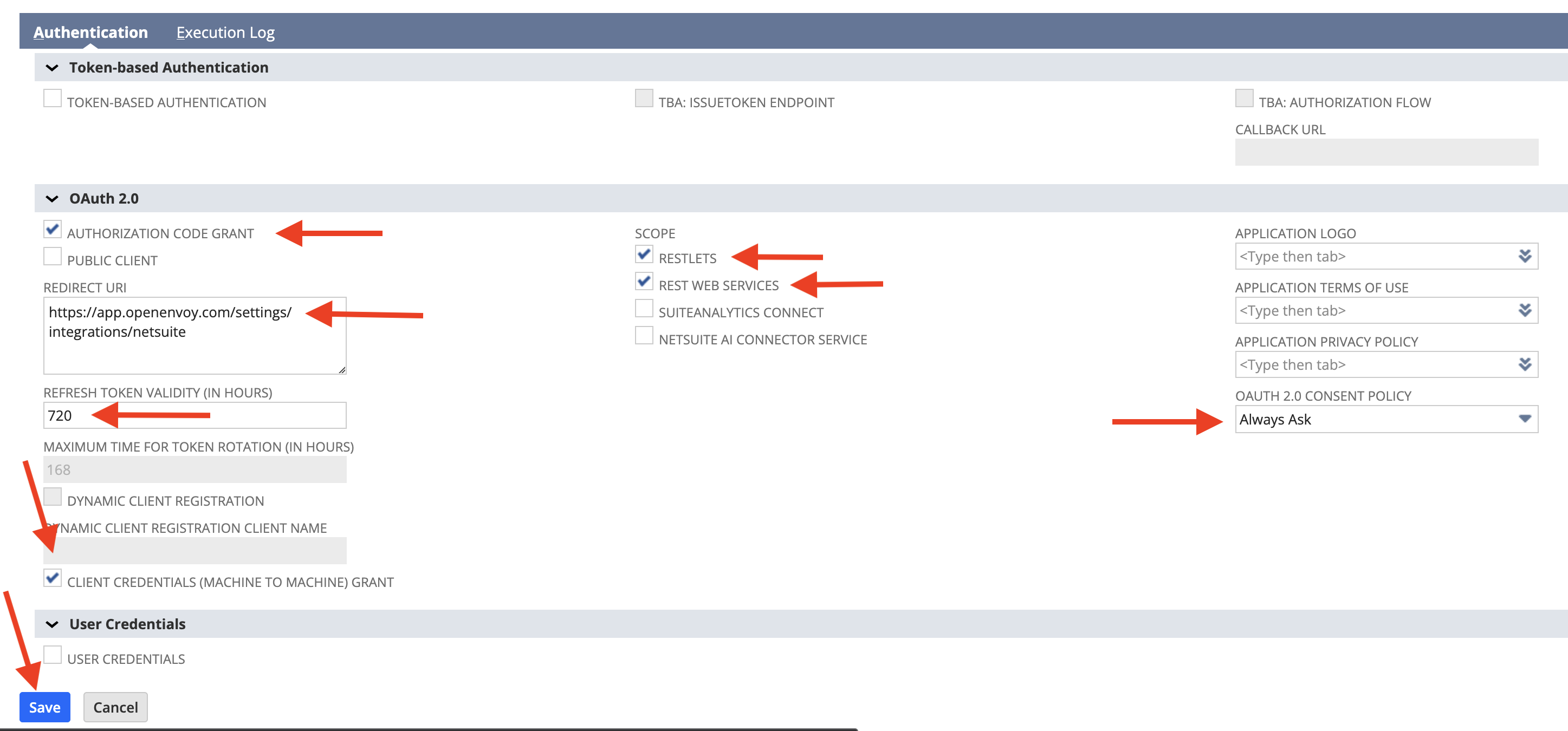
On the Authentication sub-tab, configure these settings, then click Save:
Setting | Value |
|---|---|
Authorization Code Grant | Checked |
Redirect URI |
|
Refresh Token Validity (In Hours) | 720 |
Client Credentials (Machine to Machine) Grant | Checked |
RESTlets | Checked |
REST Web Services | Checked |
OAuth 2.0 Consent Policy | Always Ask |
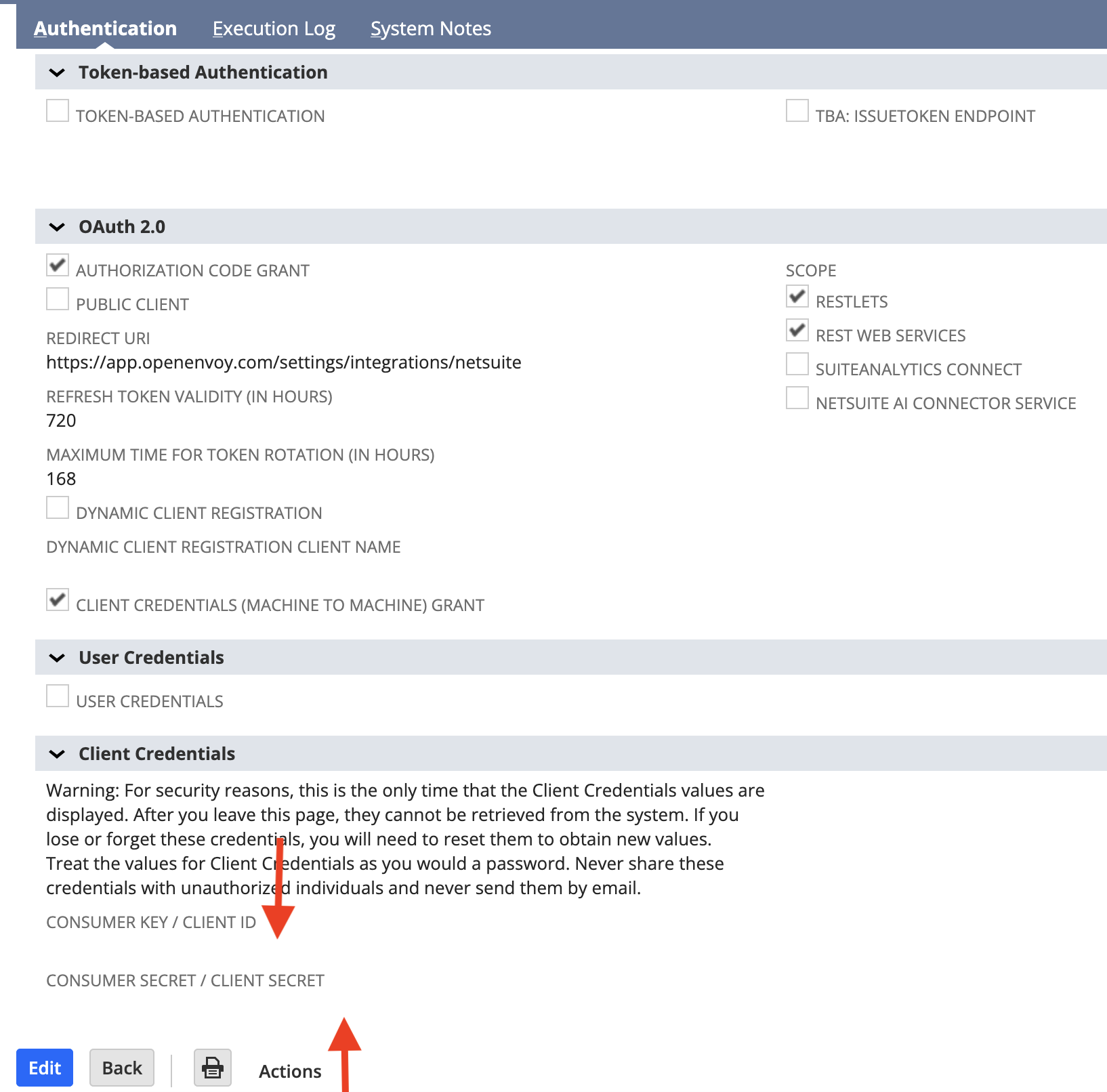
Copy the Client ID and Client Secret shown after saving.
Important: NetSuite shows the Client ID and Client Secret only once. If you leave the page without copying them, you'll need to reset them on the integration record to get new values. Store them like a password.
Step 5: Connect from OpenEnvoy
In OpenEnvoy, open the Integrations page and select NetSuite.
Enter the Client ID and Client Secret from Step 4, then click Connect. You'll be redirected to NetSuite.
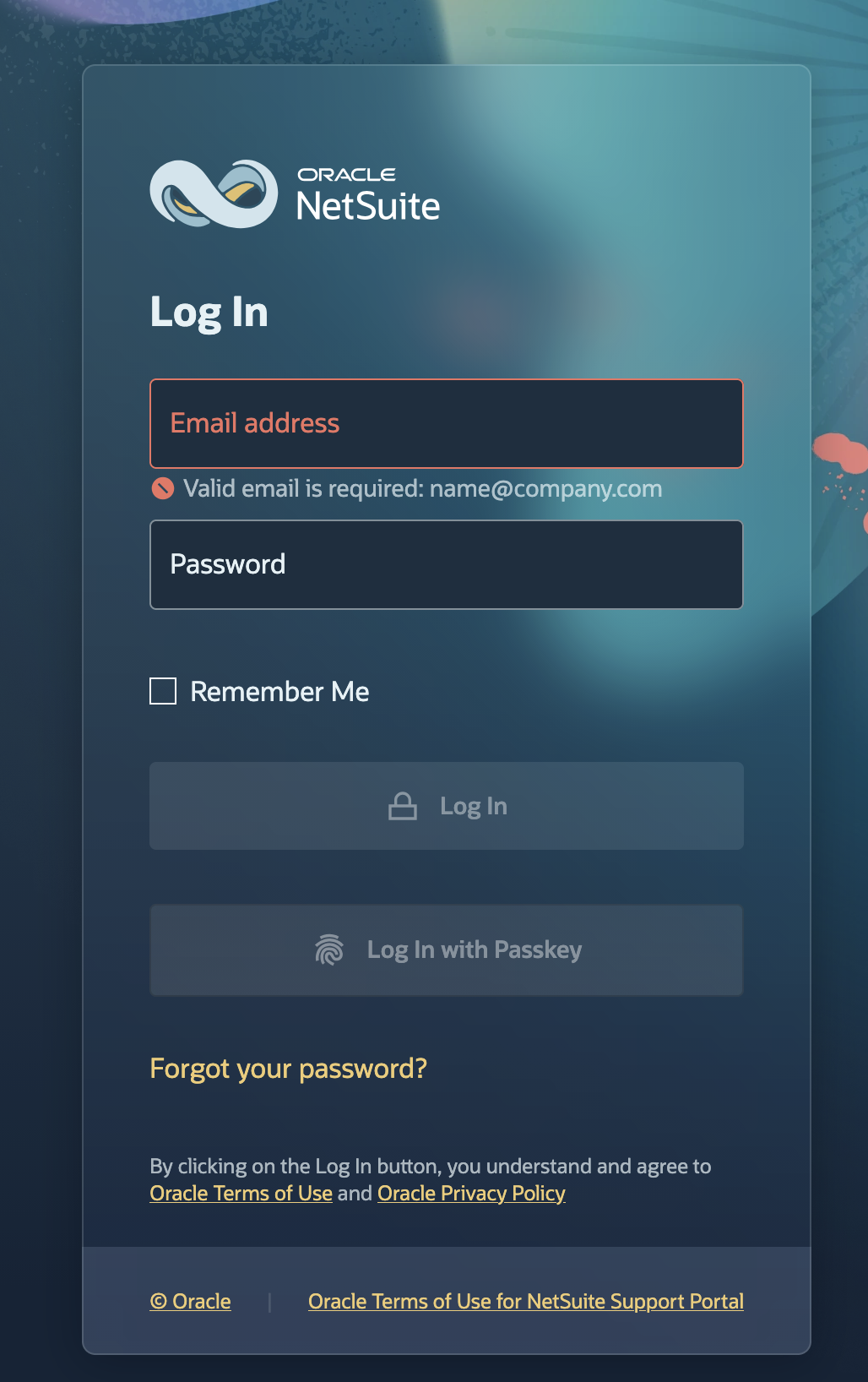
Log in to NetSuite as the user you assigned the API role to in Step 3.
Your default role is selected. Click Choose another role and select
OpenEnvoy API Role.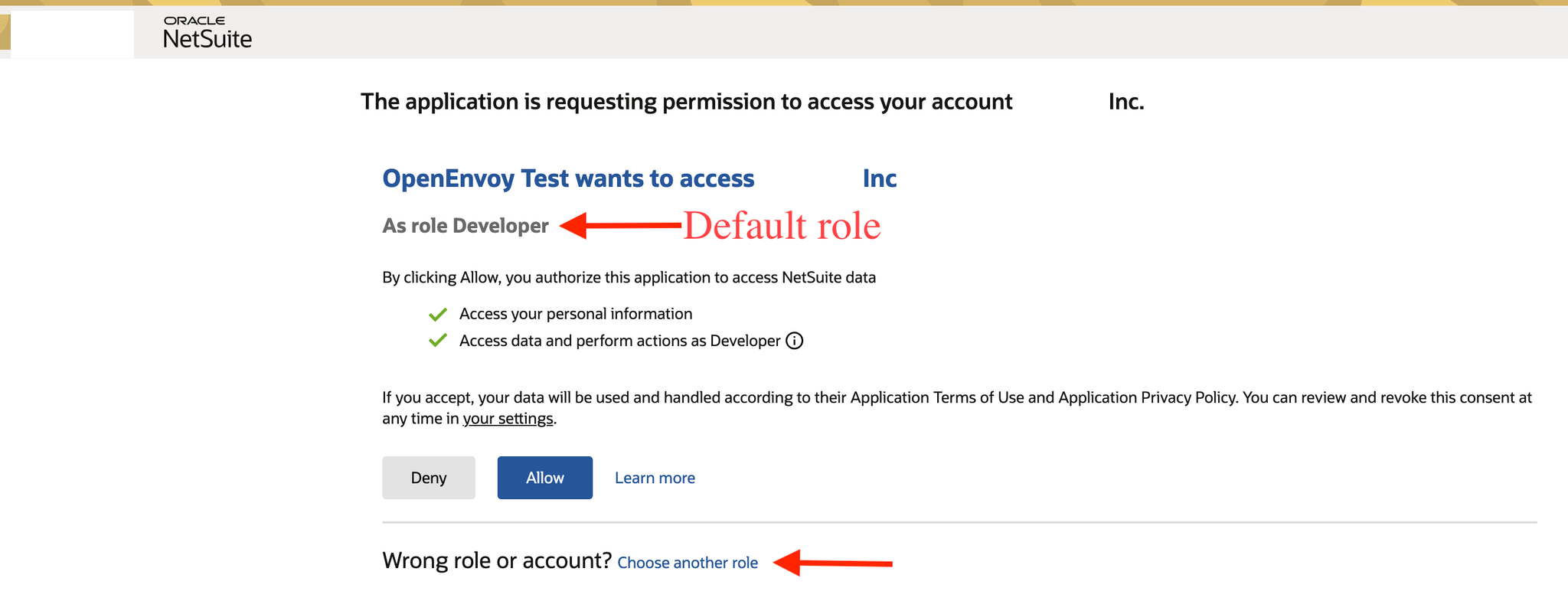
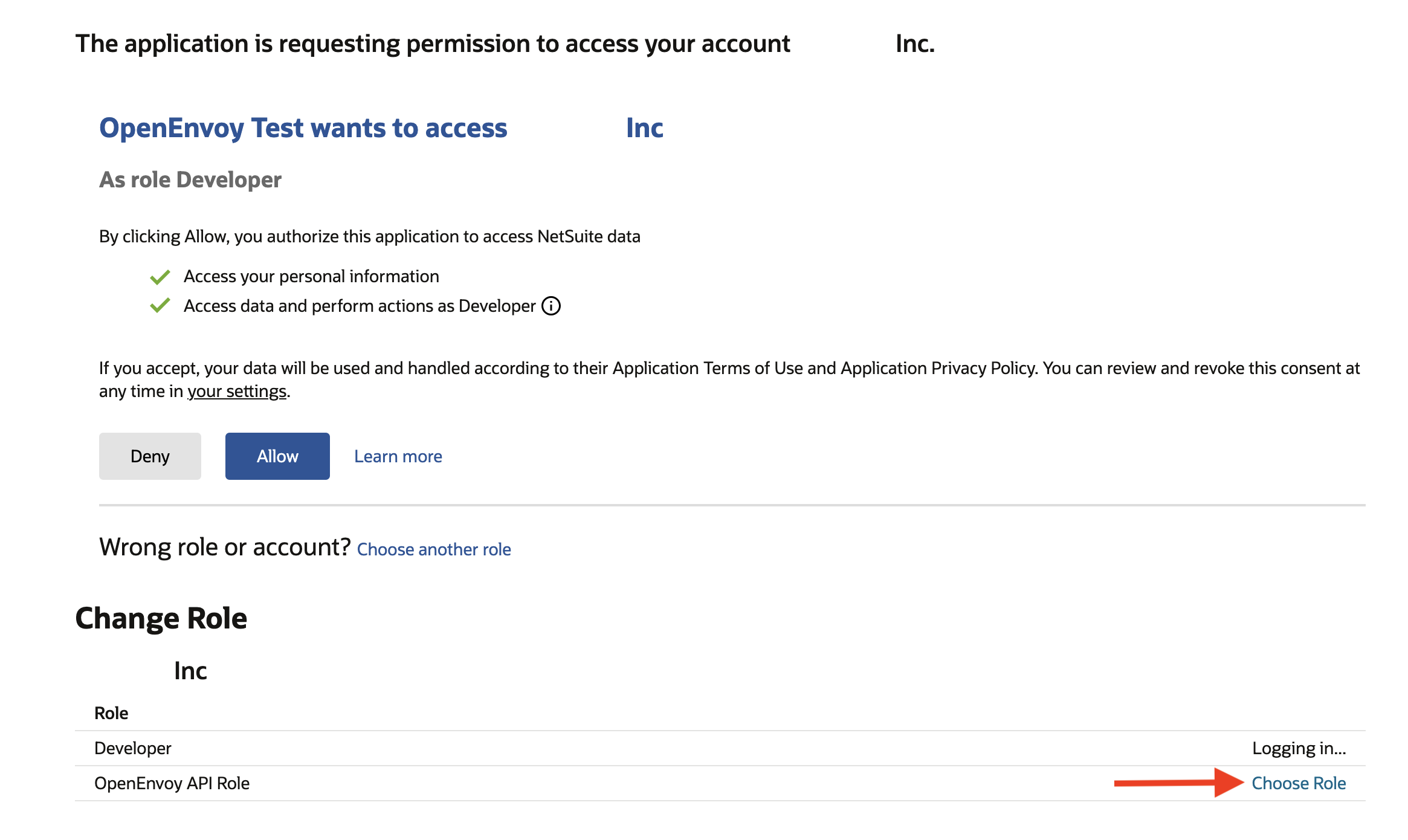
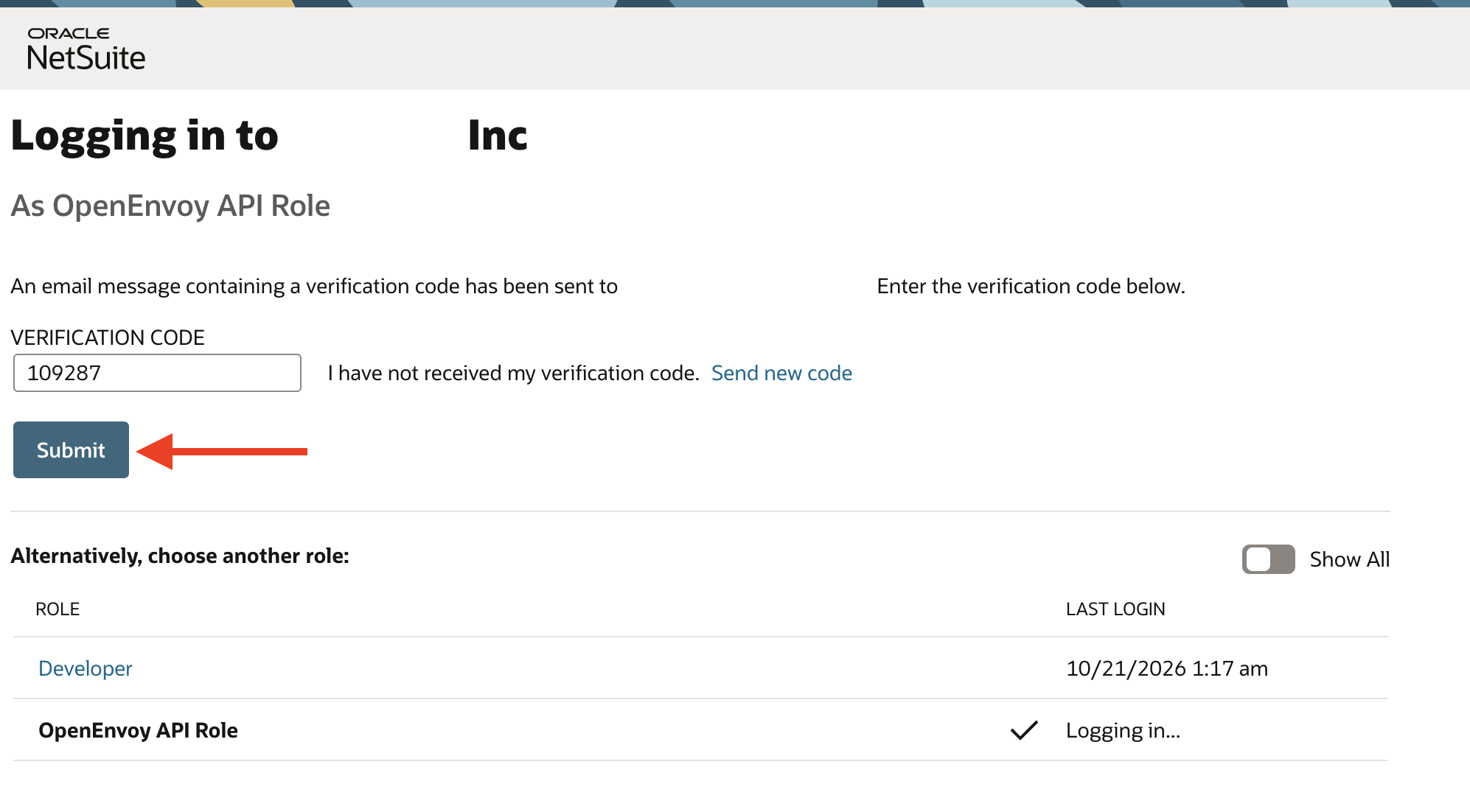
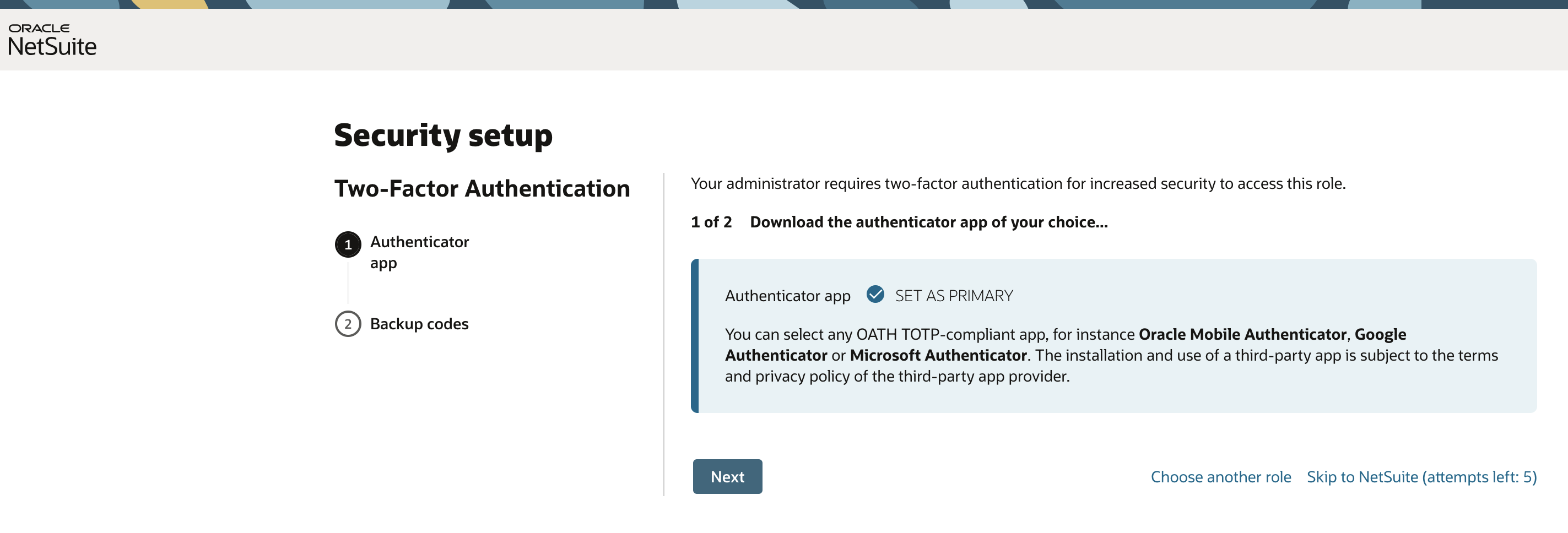
If prompted, enter the verification code and click Submit. If prompted, complete two-factor authentication setup.
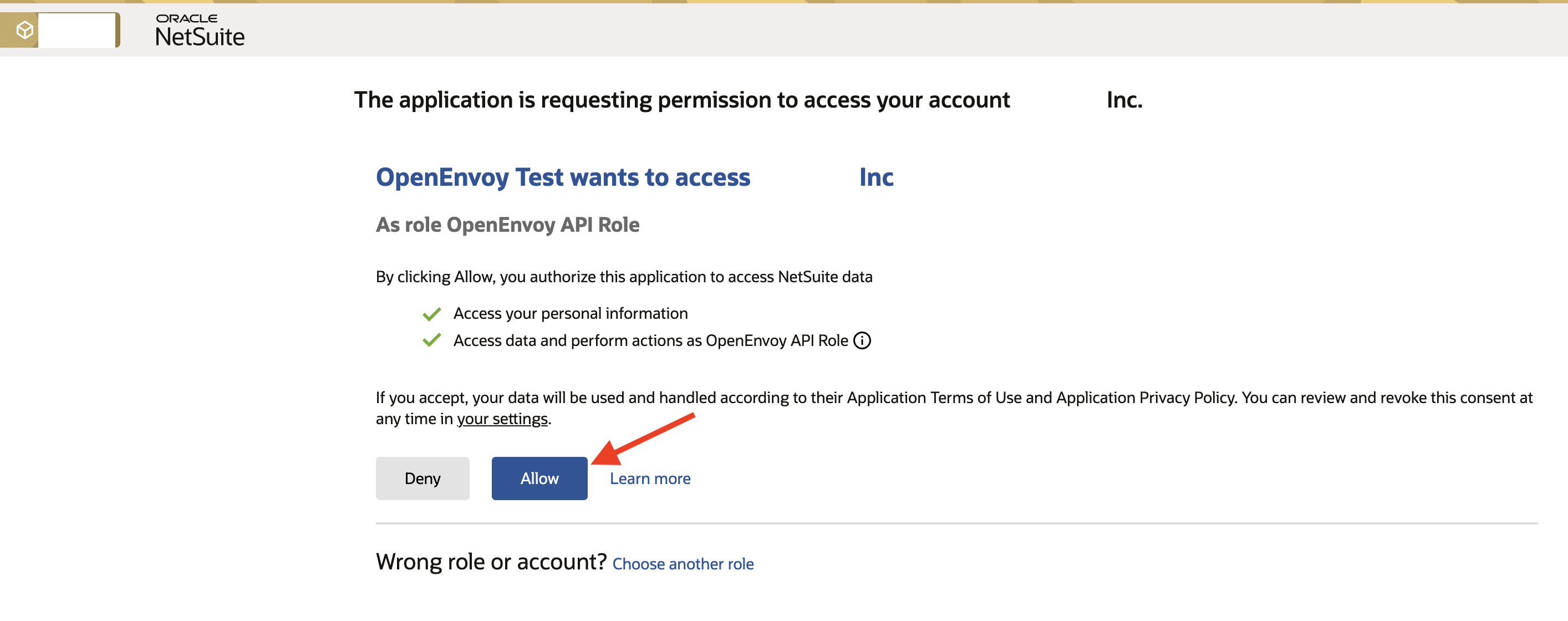
Click Allow to authorize OpenEnvoy.
You'll be returned to OpenEnvoy and the NetSuite integration will show as connected.
Troubleshooting
Problem | Fix |
|---|---|
| Make sure the role was added and saved on the user's Access > Roles sub-tab (Step 3). |
You lost the Client Secret | Open the integration record, reset the credentials, and enter the new values in OpenEnvoy. |
Redirect URI error after clicking Connect | Check that the Redirect URI on the integration record exactly matches the value in Step 4. |
OAuth 2.0 option isn't available | Make sure OAuth 2.0 and REST Web Services are enabled under Enable Features (Step 1). |
Still stuck? Contact OpenEnvoy support.