Two-Factor Authentication (2FA) / Multi-Factor Authentication (MFA)— Help Guide
Last updated: May 6, 2026
Having trouble signing in with your authenticator app / lost your phone / removed your 2FA app ? This guide covers everything you need to get back into your OpenEnvoy account.
Signing In with a Recovery Code
If you've lost access to your authenticator app, you can sign in using your recovery code.
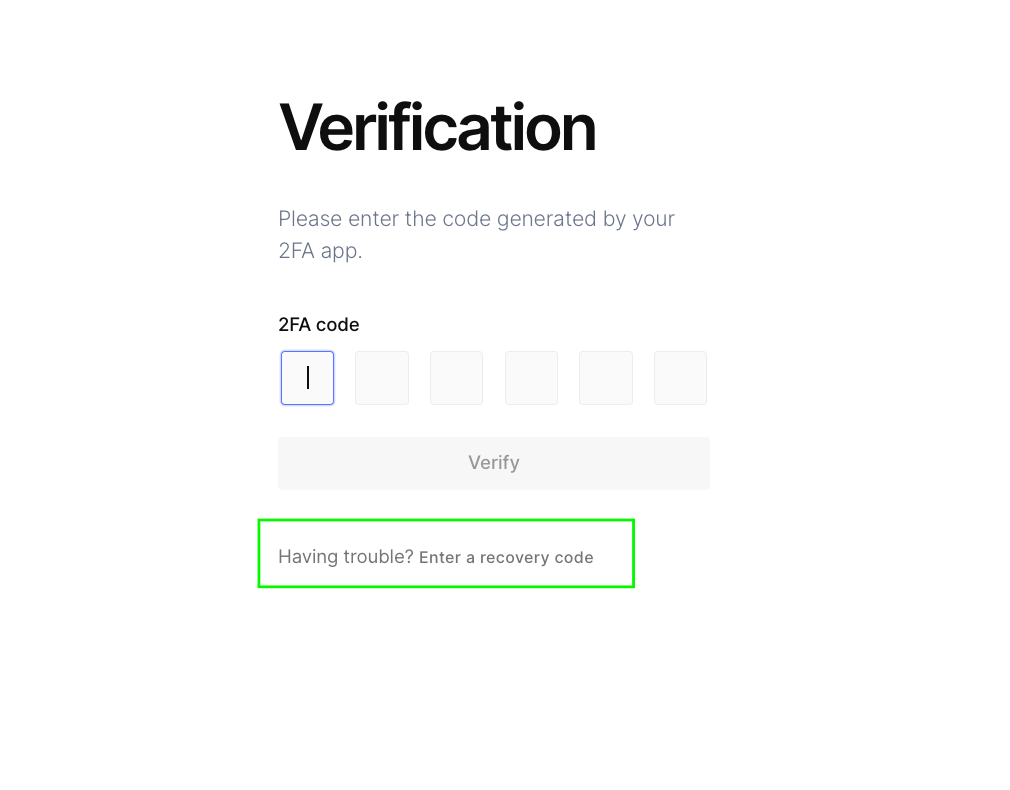
Step 1 — On the sign-in screen , enter your email and password /sso , you will be navigated to the Verification page , click "Enter a recovery code".
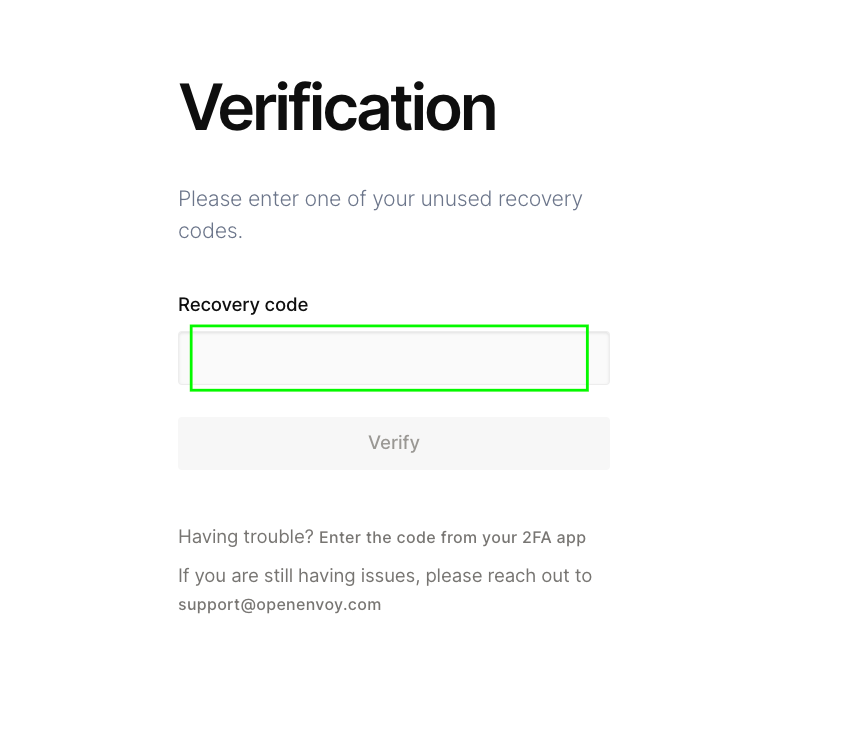
Step 2 — Enter your recovery code and submit. You will be signed in.
If you don't have your recovery code, please contact OpenEnvoy support and we'll help you regain access by sharing your recovery codes.
Changing Your Authenticator App
Once signed in, you can switch to a new authenticator app or re-pair your existing one (for example, after getting a new phone).
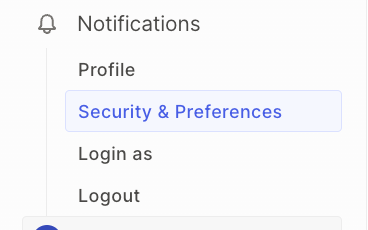
Step 1 — Click your profile icon and select "Security and Preferences".
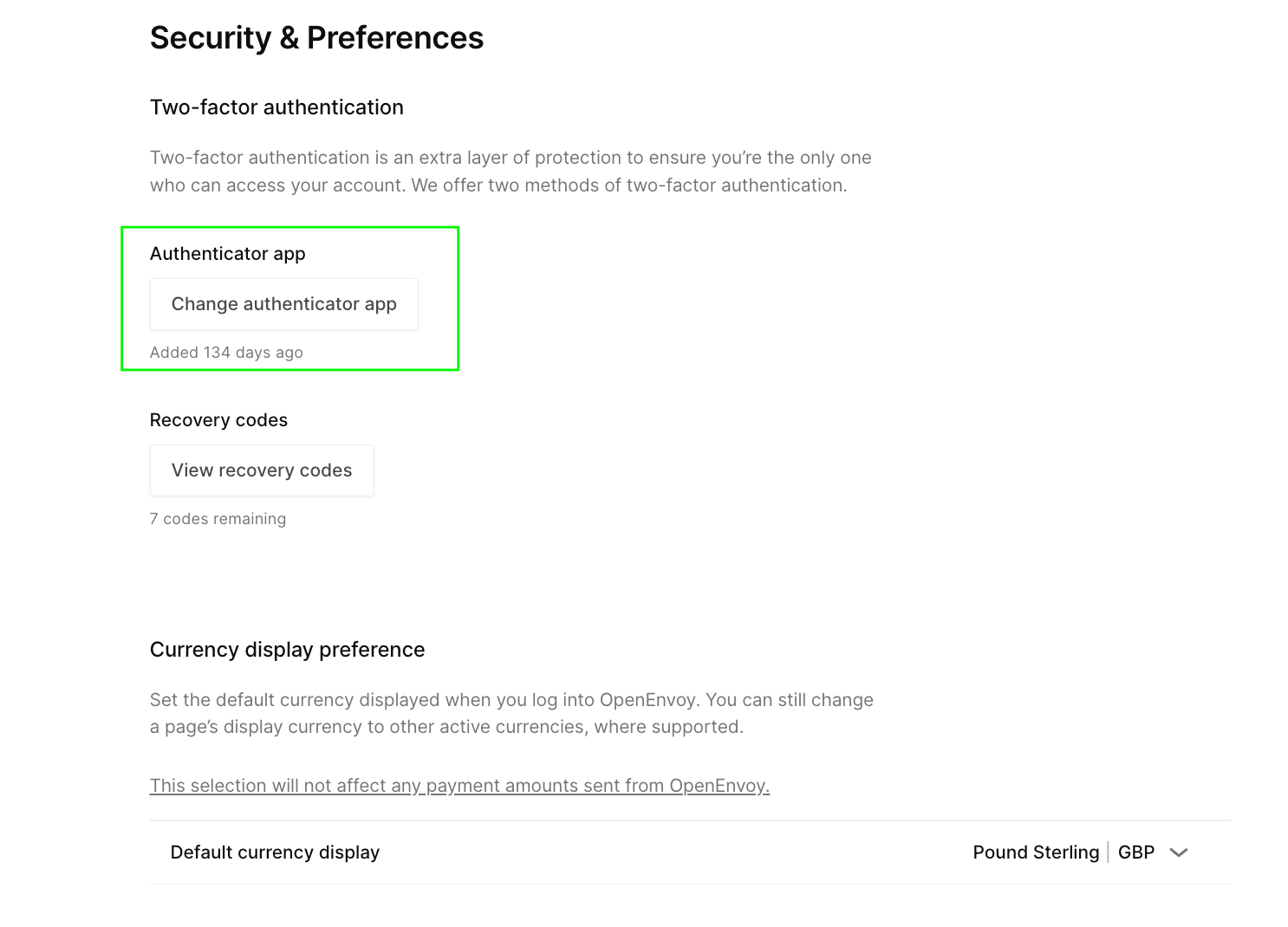
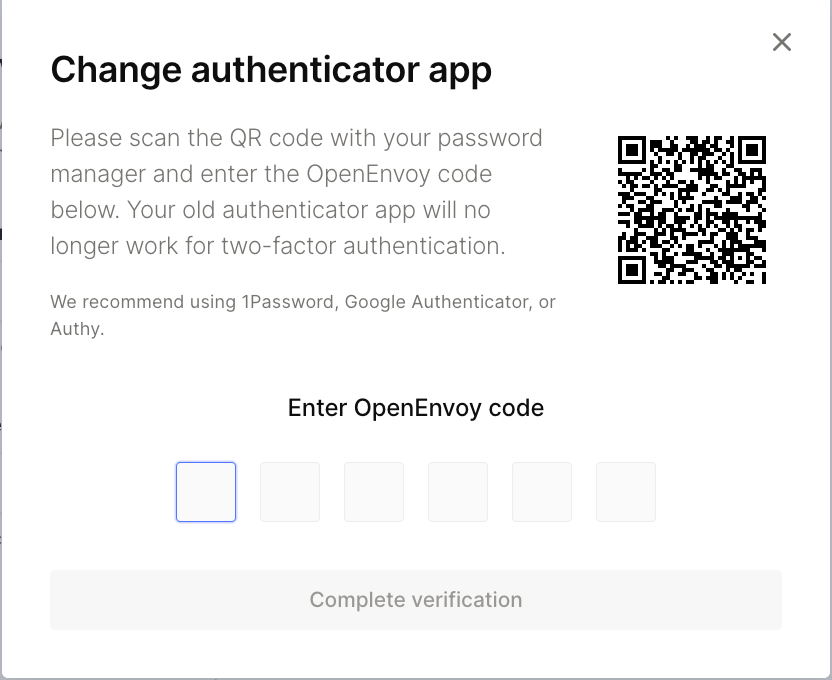
Step 2 — Click "Change authenticator app".
Step 3 — Open your authenticator app (Google Authenticator, Microsoft Authenticator, Authy, etc.) and scan the QR code shown on screen.
Step 4 — Enter the 6-digit code from your authenticator app and submit.
Tips for a smooth setup:
Submit the code within 30 seconds of scanning the QR code.
Do not refresh the page or scan the QR code a second time — this resets the pairing and the codes from your first scan will stop working.
Make sure to save your new recovery code when prompted. Store it somewhere safe — you'll need it if you ever lose access to your authenticator app again.
My Authenticator Code Isn't Working
If you've set up your authenticator app but every code you enter is rejected, this is usually caused by your phone's clock being slightly out of sync. Authenticator codes are time-based and only valid for a short window, so even a small clock difference can cause them to fail.
Fix 1 — Sync your phone's clock
iPhone: Settings → General → Date & Time → turn ON "Set Automatically"
Android: Settings → System → Date & time → turn ON "Use network-provided time" and "Use network-provided time zone"
Fix 2 — Sync your authenticator app's internal clock
Google Authenticator: Open the app → tap the three-dot menu (⋮) → Settings → Time correction for codes → Sync now
Microsoft Authenticator: No additional step needed — syncing your phone's clock (Fix 1) is sufficient.
Fix 3 — Re-pair your account
After syncing your clock, go back to OpenEnvoy and set up the authenticator again:
Navigate to Security and Preferences → Change authenticator app
Scan the new QR code with your authenticator app
Enter the 6-digit code within 30 seconds of scanning and submit
Do not refresh the page or scan a second QR code
Still not working?
If you've tried all the steps above and codes are still being rejected, contact OpenEnvoy support. We can perform a full reset of your 2FA so you can set it up from scratch.
Frequently Asked Questions
Which authenticator apps are supported? Any TOTP-based authenticator app works with OpenEnvoy, including Google Authenticator, Microsoft Authenticator, Authy, 1Password, and others.
Where do I find my recovery code? Your recovery code was shown when you first set up 2FA. If you saved it at that time, check your password manager or wherever you store credentials. If you didn't save it, contact support for assistance.
I switched phones. Do I need to do anything? Yes — your authenticator app doesn't transfer automatically between devices. Sign in using your recovery code (see above), then set up the authenticator app on your new phone under Security and Preferences.
Why do my codes keep failing even though I just set up the app? This is almost always a clock sync issue. Follow the steps in the "My Authenticator Code Isn't Working" section above — syncing your phone's clock resolves this in most cases.