Workspace Settings
Last updated: July 29, 2026
Workspace Settings is the central configuration hub for your OpenEnvoy workspace. It controls how jobs are displayed, who can do what, how operations behave, and how your financial data is structured. Only Admins can access and modify these settings.
How to Access Workspace Settings
In the left navigation panel, click Settings
Click Workspace
The full URL path is: app.openenvoy.com/<your-workspace>/settings/workspace
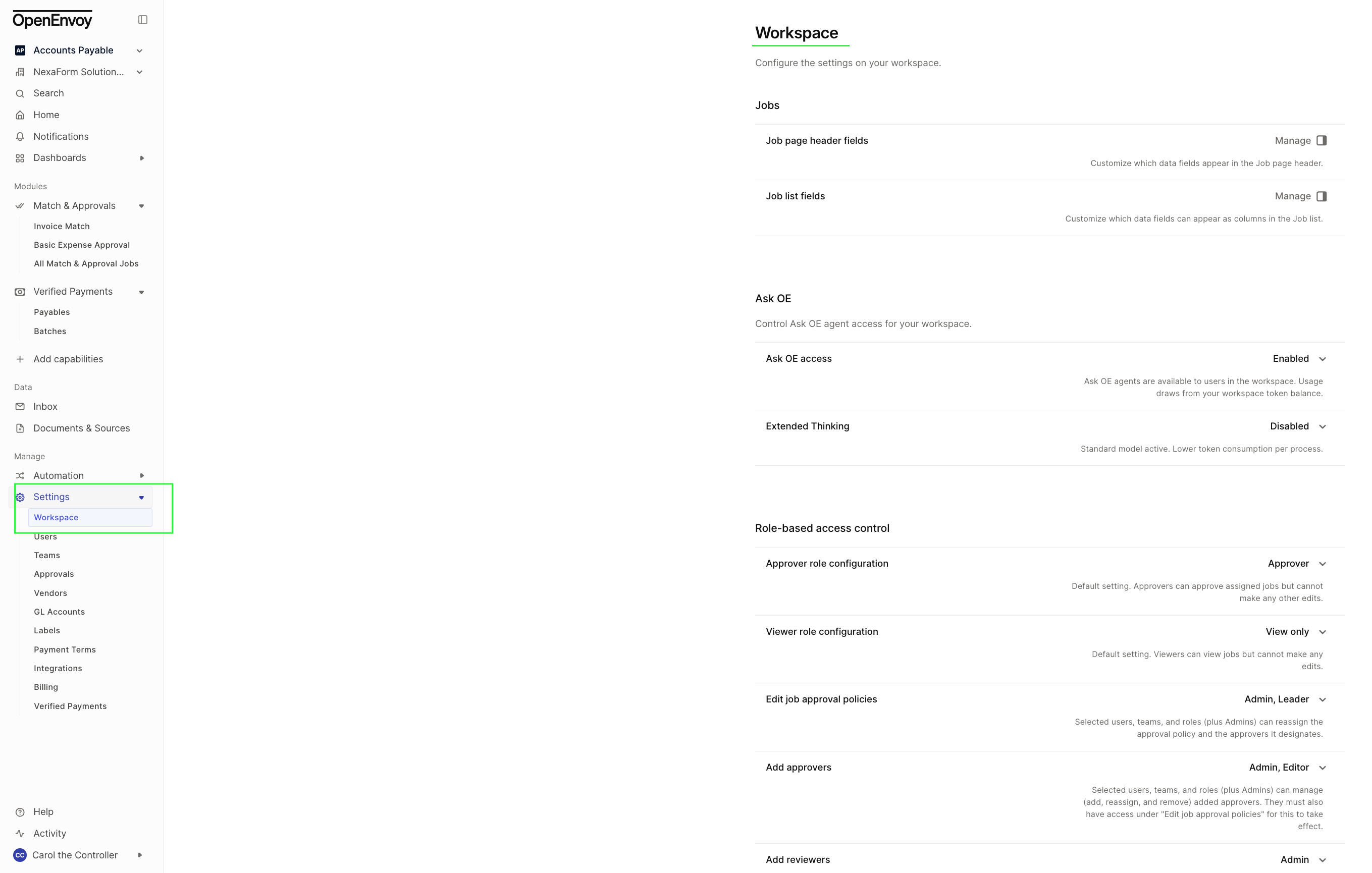
Admin access required. Only users with the Admin role can view and modify Workspace Settings. If you don't see the Settings option in your left nav, contact your workspace admin.
Jobs
Configure which data fields appear on the job list and job header across your workspace.
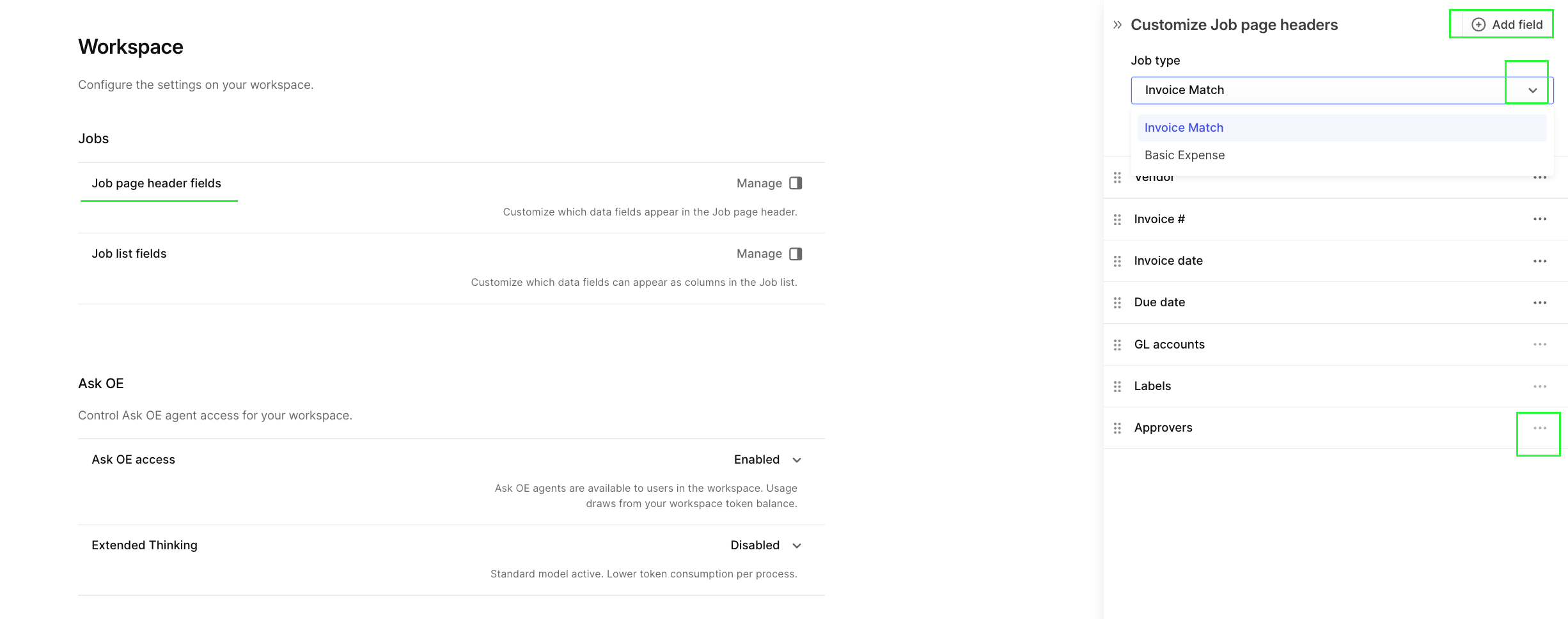
Job page header fields
What it does: Controls which fields appear in the header section at the top of each job page (e.g., Invoice #, Vendor, Invoice date, Due date, GL accounts, Labels, Approvers).
Click Manage to add, remove, or reorder fields. You can configure different header layouts for Match and Basic job types. Some fields — like Approvers, Labels, and GL accounts — are locked and cannot be removed.
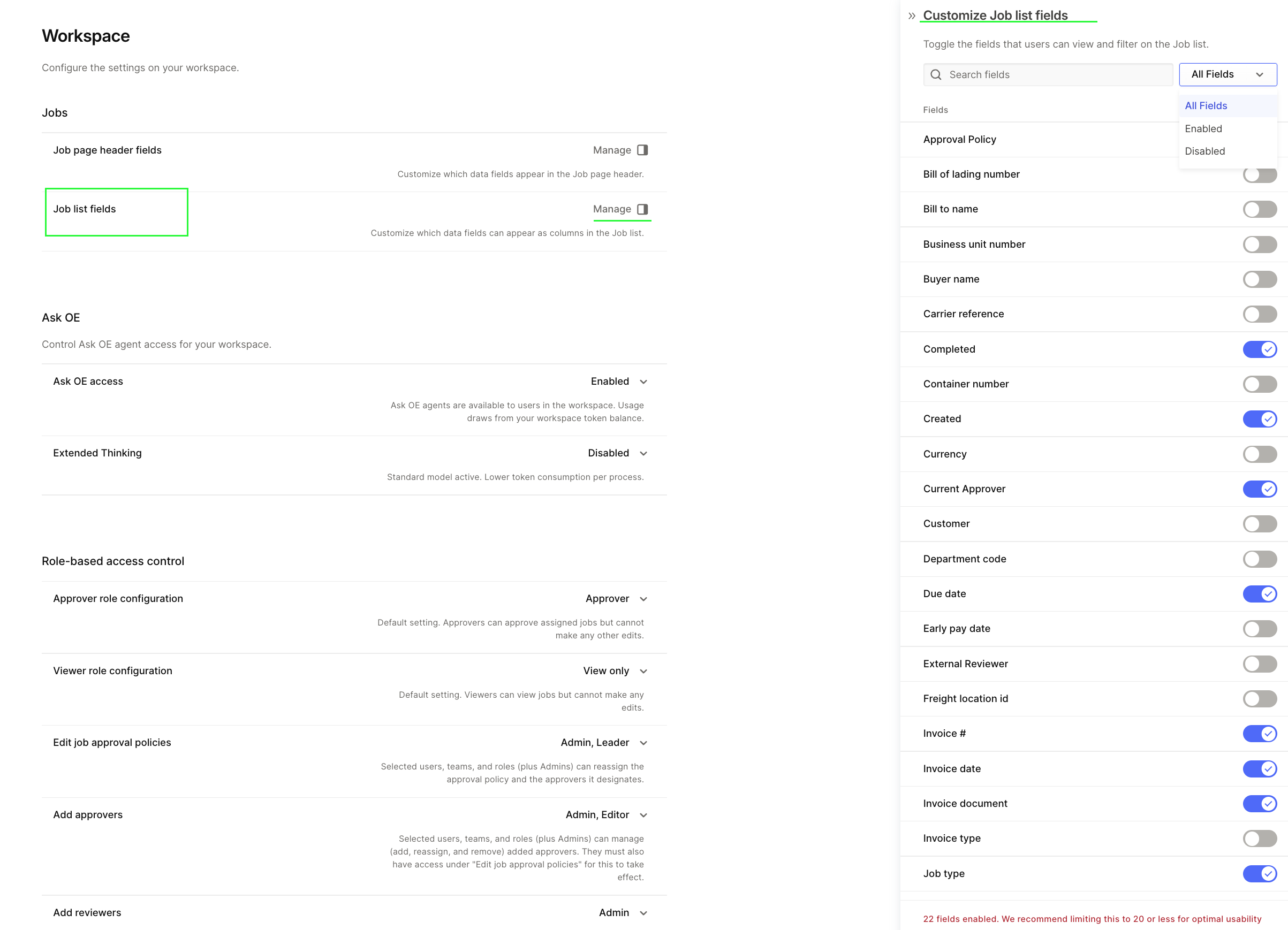
Job list fields
What it does: Controls which data fields appear as columns on the Job List page (e.g., Cost, Overbillings, Underbillings, Ownership, Created, Updated).
Click Manage to toggle columns on or off. Some core columns like Job, Vendor, Labels, Cost, GL accounts, and Status are always visible and cannot be removed.
Ask OE
Configure access to OpenEnvoy's AI assistant, Ask OE.
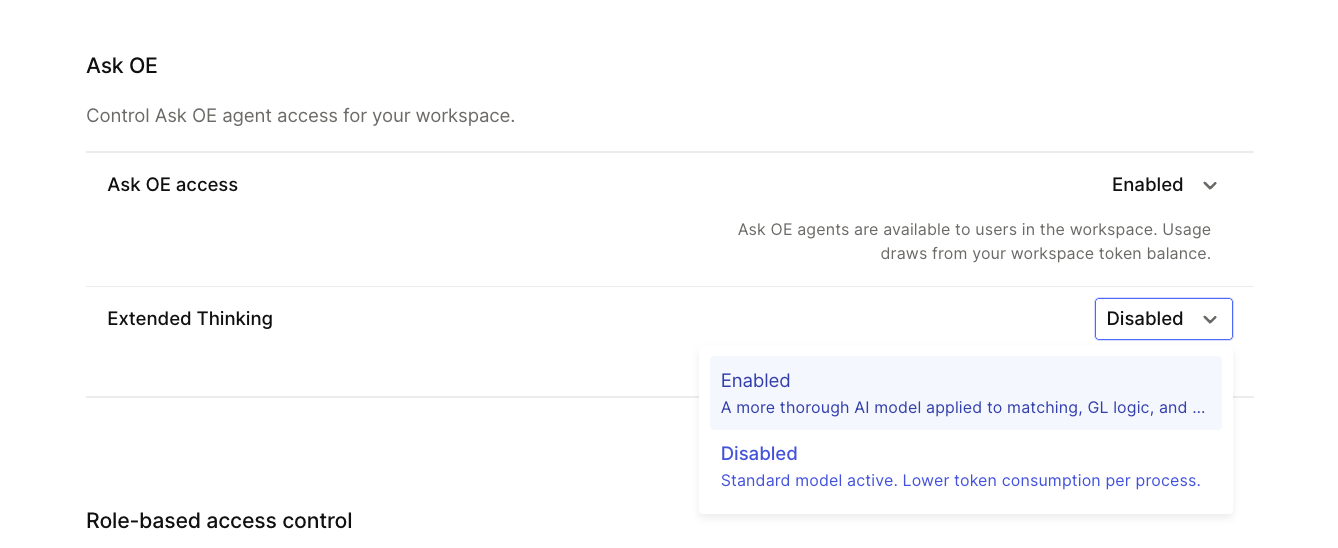
Ask OE access
What it does: Controls whether the Ask OE AI agent is available to users in your workspace. When enabled, users can interact with Ask OE to ask questions about their jobs, invoices, and workspace data.
Options: Enabled / Disabled
Extended Thinking
What it does: Enables a deeper reasoning mode for the Ask OE agent, allowing it to process more complex queries. This uses additional processing capacity and may result in slower response times.
Options: Enabled / Disabled
Role-Based Access Control
Fine-tune what each user role can see and do across your workspace. These settings let you tighten or relax permissions without changing a user's assigned role.
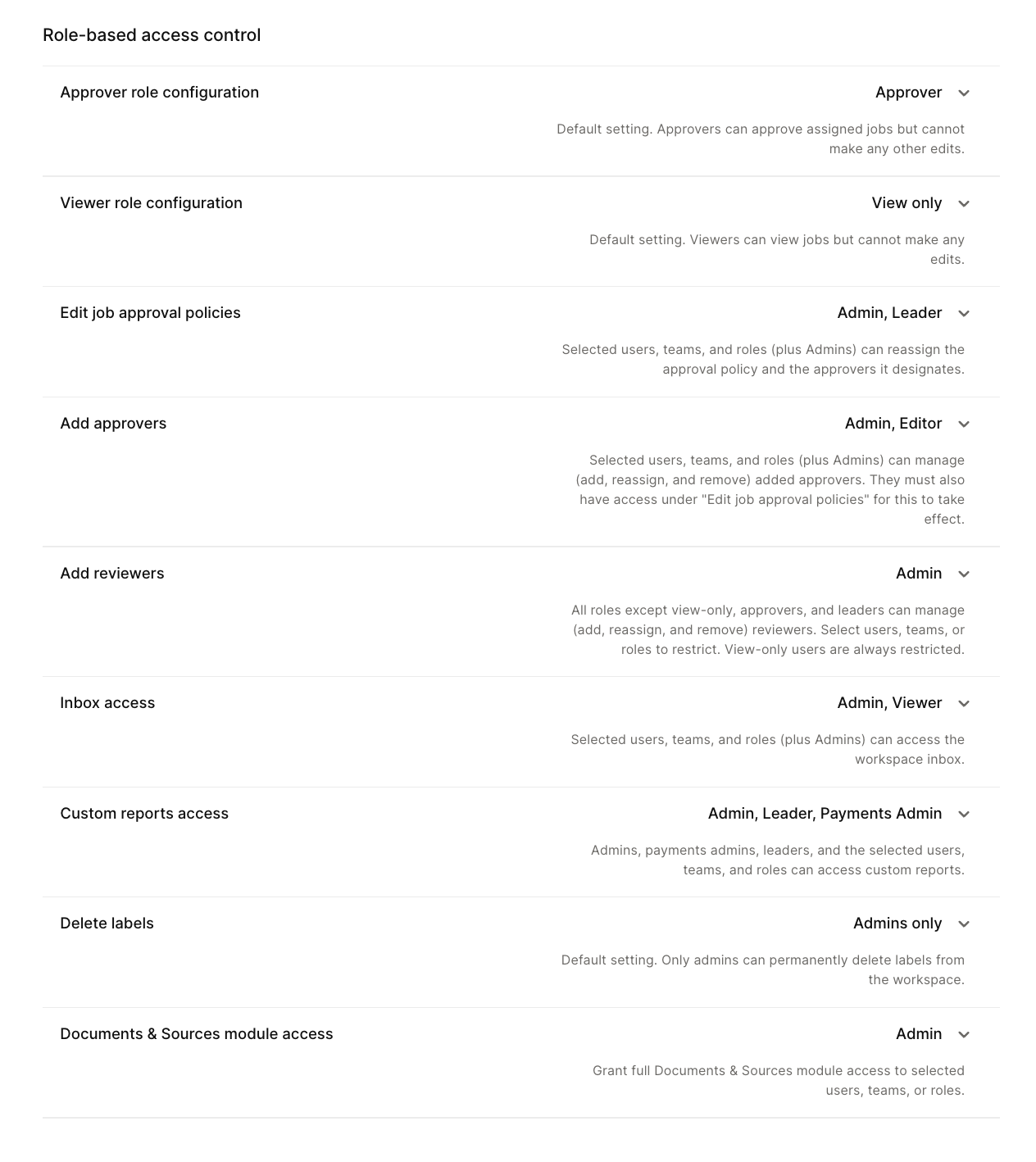
Approver role configuration
What it does: Defines the permission level for users with the Approver role.
Options:
Approver (default) — Approvers can approve/reject jobs and view assigned jobs but cannot edit job data
Editor — Approvers can also edit job data (GL codes, labels, line items, etc.)
Common scenario: If Approvers report they can't add GL codes or edit job fields, check this setting first. Changing it from "Approver" to "Editor" grants edit permissions without changing anyone's role.
Viewer role configuration
What it does: Defines the permission level for users with the Viewer role.
Options:
View only (default) — Viewers can see jobs and data but cannot take any actions
View and comment — Viewers can also add comments on jobs
Edit job approval policies
What it does: Controls which roles can modify approval policies on individual jobs (adding/removing approvers, changing approval steps).
Default: Admin only
Add payments
What it does: Controls which roles can create or initiate payments. By default only Admins can add payments. Roles with access can manage trade payables and initiate payment runs.
Default: Admin only
Add reviewers
What it does: Controls which roles can add reviewers to jobs.
Default: Admin only
Inbox access
What it does: Controls which roles can access the email inbox where invoices are received. Users with inbox access can view incoming emails, manage the inbox queue, and process new submissions.
Default: Admin only
Custom reports access
What it does: Controls which roles can create, edit, and view custom reports and dashboards.
Default: Admin, Leader, Payments Admin
Delete data
What it does: Controls who can permanently delete jobs and other data from the workspace. This is a sensitive permission — deleted data cannot be recovered.
Default: Admins only
Documents & Sources module access
What it does: Controls which roles can access the Documents & Sources module, where uploaded documents, source files, and related data are managed.
Default: Admin only
Automation
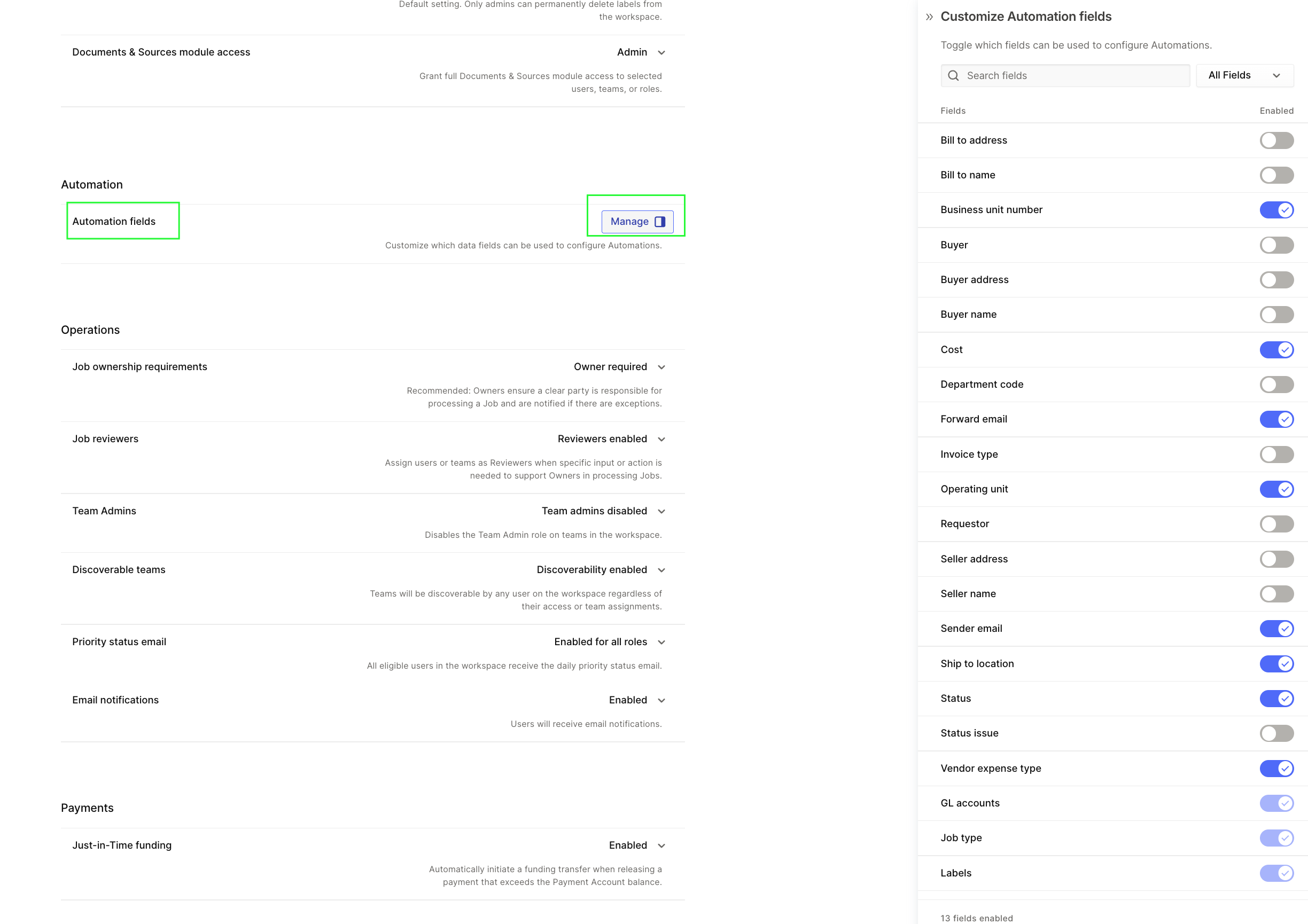
Automation fields
What it does: Controls which data fields are available as filter conditions when building workflows (the IF step). Click Manage to enable or disable specific fields.
Core fields like GL accounts, Job type, Labels, and Vendor are always available and cannot be disabled. Additional fields like Bill to name, Operating unit, Buyer name, Cost, and Status can be toggled on or off depending on your workflow needs.
Operations
Day-to-day operational settings that affect how jobs are routed, reviewed, and communicated.
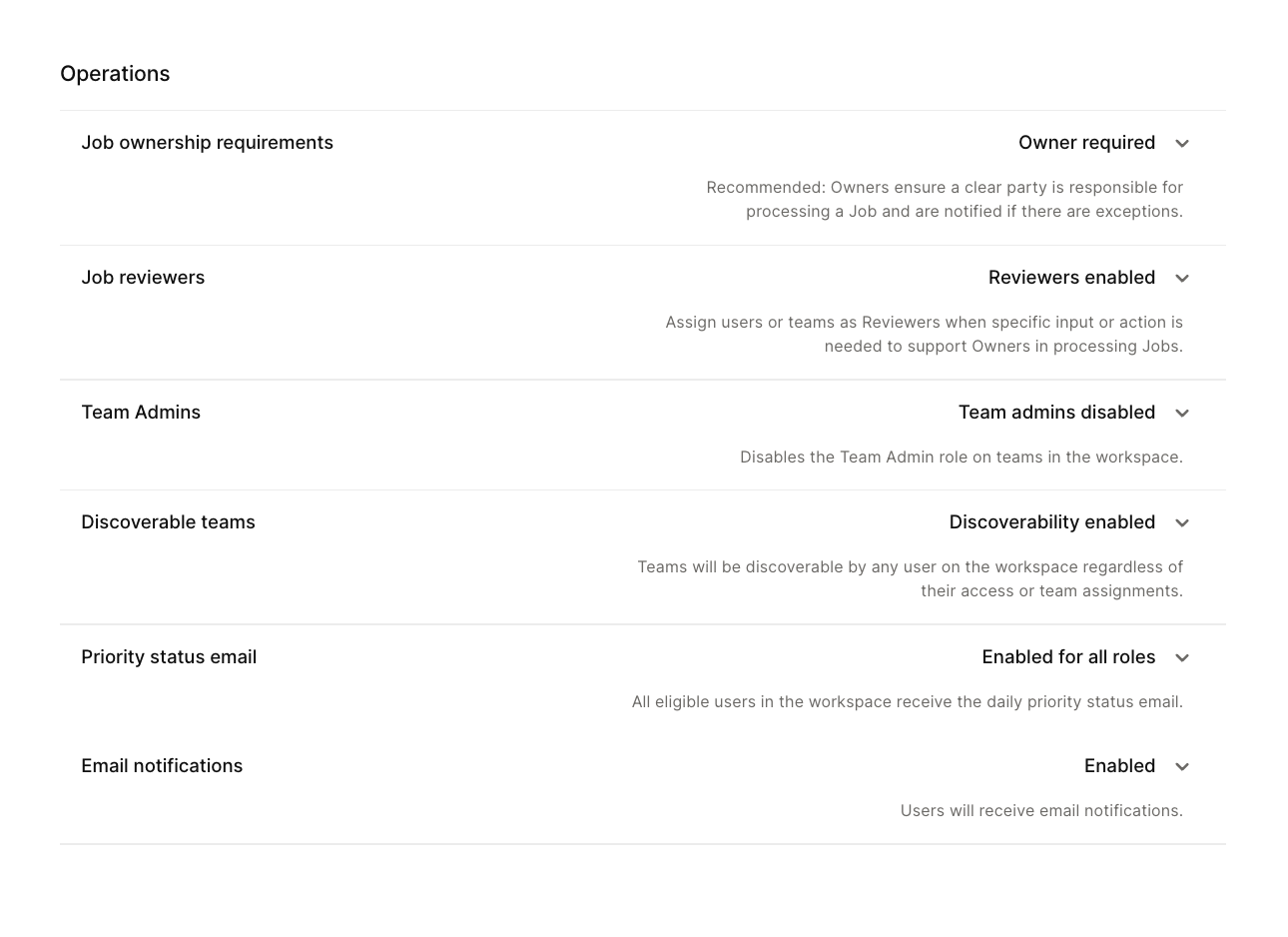
Job ownership requirements
What it does: Controls whether every job must have an assigned owner.
Options:
Owner not required (default) — Jobs can proceed through the workflow without an assigned owner
Owner required — Jobs must have an assigned owner. Jobs without an owner will be flagged and may block progression
Job reviewers
What it does: Controls whether the reviewer role is enabled for jobs. When enabled, reviewers can be assigned to jobs for additional oversight without being part of the formal approval chain.
Options: Reviewers enabled / Reviewers disabled
Team admin
What it does: Controls whether the Team Admin role is active. When enabled, Team Admins can manage their own team's members and settings without needing full workspace Admin access.
Options: Team admin Enabled / Team admin Disabled
Discoverable teams
What it does: Controls whether teams in your workspace are visible to all users or only to team members. When enabled, users can see other teams in the workspace and request to join them.
Options: Discoverability enabled / Discoverability disabled
Priority status email
What it does: Controls which roles receive priority status notification emails when jobs require urgent attention (e.g., jobs stuck in exceptions, overdue approvals).
Options: Enabled for all roles / Enabled for specific roles / Disabled
Email notifications
What it does: Master toggle for email notifications across the workspace. When enabled, users receive email alerts for job assignments, approval requests, status changes, and other events based on their notification preferences.
Options: Enabled / Disabled
Payments
Just-in-Time funding
What it does: When enabled, payment batches are automatically funded just before processing — meaning funds are pulled from your connected bank account only when a payment is ready to execute, rather than requiring pre-funding.
Options: Enabled / Disabled
General Ledger
Chart of Accounts structure
What it does: Defines the structure of your Chart of Accounts — the type, value format, and segment length of your GL codes. This structure determines how GL accounts are organized and validated across your workspace.
Click Manage to configure your CoA segments. Once jobs have been processed, the Chart of Accounts structure cannot be edited — so set this up carefully during onboarding.
Currency & Exchange Rate
Supported currencies
What it does: Defines which currencies your workspace supports. Click Manage to add or remove currencies. When multiple currencies are enabled, jobs can be processed in any supported currency with automatic conversion.
Exchange rate sources
What it does: Configures which exchange rate source is used for currency conversion when processing multi-currency invoices. Click Manage to select or update your exchange rate provider.
FAQ
Q: I can't find the Workspace option under Settings.
Only Admin users can see Workspace Settings. If you need access, ask your workspace admin to either grant you the Admin role or make the specific change you need.
Q: My Approvers can't edit GL codes or line items on jobs.
Check Role-Based Access Control → Approver role configuration. If it's set to "Approver," Approvers can only approve/reject — not edit. Change it to "Editor" to grant edit permissions.
Q: I want to add a new column to the Job List page for all users.
Go to Jobs → Job list fields → Manage and toggle on the field you want. This change applies workspace-wide — all users will see the new column.
Q: Can I have different job header fields for Match and Basic jobs?
Yes. The Job page header fields configuration supports separate layouts for Match and Basic job types.
Q: I changed a setting but it doesn't seem to take effect.
Most settings apply immediately. Try refreshing your browser. If the issue persists, contact support@openenvoy.com.
Need help? Contact support@openenvoy.com.