Invite a user to Production when they are not part of it
Last updated: August 7, 2026
Overview
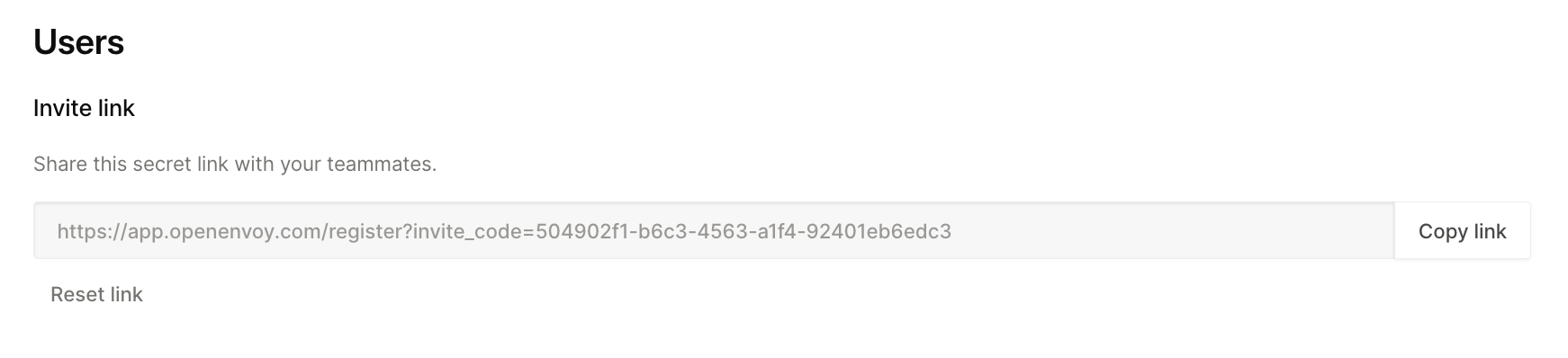
If a user needs access to the "Production workspace" but is not currently part of it, an admin must invite the user from Settings → Users. The admin can invite the user by email or share the workspace’s custom invite link.
Prerequisites
Before inviting the user, confirm:
The user’s email address is correct.
If the user should have access to the Production workspace or just sandbox.
The correct role and access level are known.
The user should be assigned to the correct team, if applicable.
You have admin permissions to manage users.
Steps
Log in to the Production workspace
Make sure you are in the Production instance, not Sandbox or another environment.
Go to User Management
Navigate to Settings → Users.
Check whether the user already exists
Search for the user by email.
If the user already exists, review their status, role, access level, and team assignment instead of sending a new invite.
Invite the user
Click Invite or use the available invite link from the Users page.
Enter user details
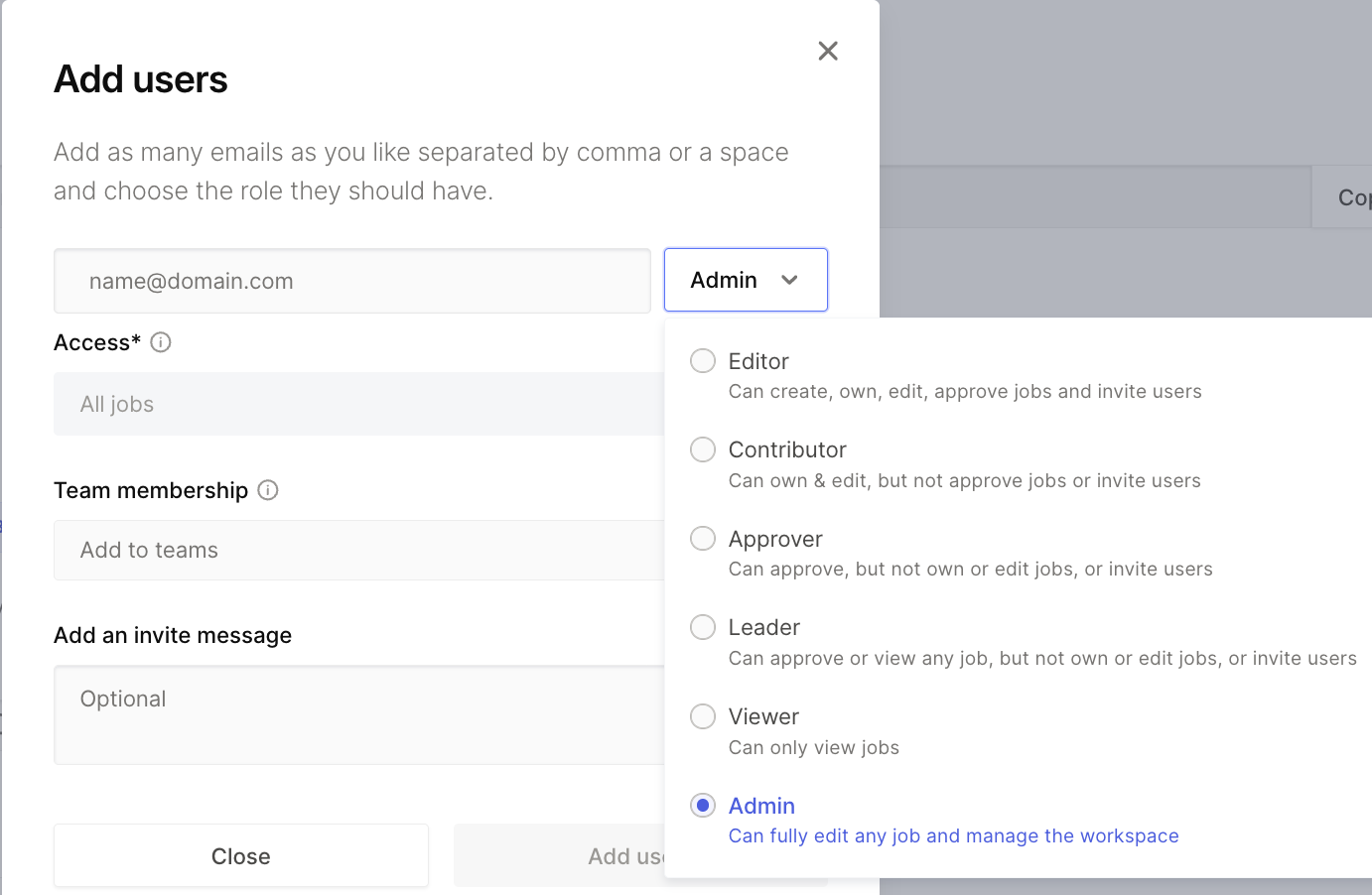
Add the user’s email address and select the appropriate role, such as:
Admin
Editor
Contributor
ApproveOnly
Viewer
Assign access and team membership
If needed, assign the user to the correct team and set the appropriate access level.
Send the invite
Send the invitation. The user should receive an email from OpenEnvoy.
Ask the user to accept the invite
The user should click Accept invite in the email and complete registration.
Confirm access
After registration, verify that the user can access Production and see the correct jobs, teams, and workspace areas based on their assigned role.
Troubleshooting
If the user does not receive the invite:
Confirm the email address is correct.
Ask the user to check spam or junk folders.
Resend the invite or share the custom invite link if appropriate.
If the user still cannot access Production:
Confirm they accepted the invite.
Confirm they are using the Production URL.
Check their role, access level, and team assignment.
Confirm they are active in the workspace.
Escalate to an admin or raise a support ticket if access still does not work.
Need help write to support@openenvoy.com