Approval Delegation (Out of Office)
Last updated: June 24, 2026
When an approver is out of office, on leave, or has moved teams, invoices and jobs awaiting their approval can get stuck. Approval Delegation solves this — you can designate a delegate to cover your approval responsibilities during your absence, ensuring invoices keep moving without manual intervention.
How It Works
A delegate temporarily steps in for the original approver. During an active delegation, the delegate can see and act on the original user's approval queue — approving or rejecting jobs on their behalf. When the delegation ends, everything reverts back automatically.
A delegation requires a start date but the end date is optional. You can set a defined window (e.g., June 25 – July 5) or leave the end date blank to delegate indefinitely until you or an admin manually ends it.
Delegation does not change anyone's role or permissions. The delegate simply gets temporary access to the original user's approval-related jobs for as long as the delegation is active.
Setting Up a Delegation
Setting your own delegate
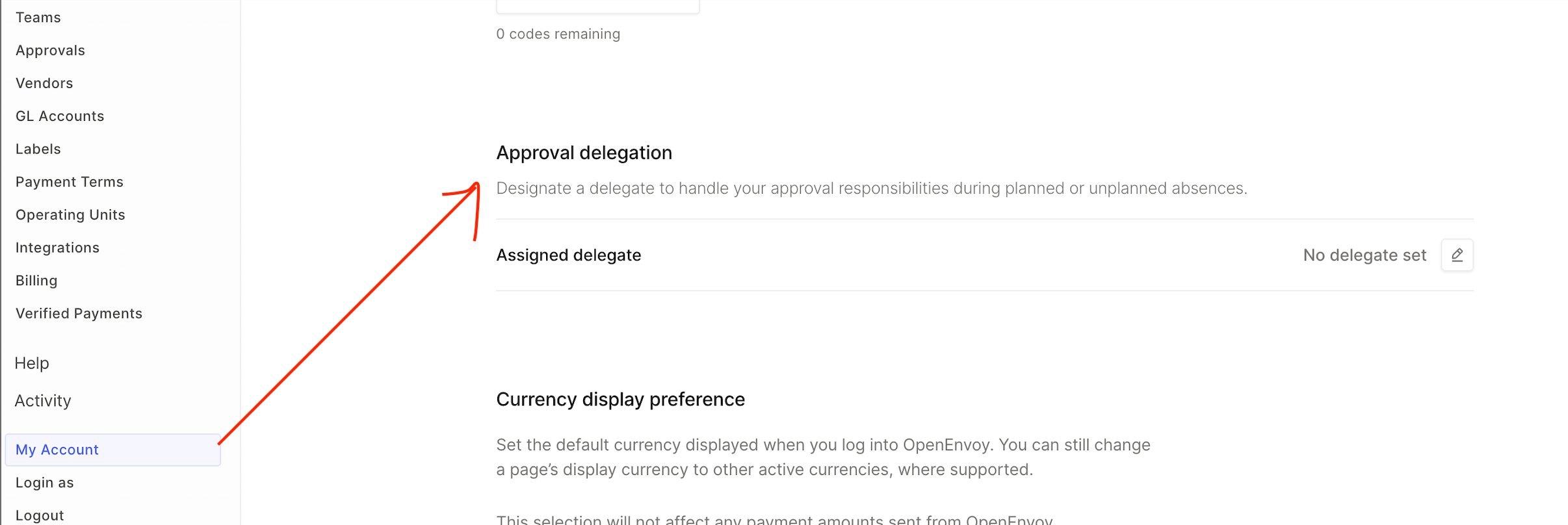
Any user can set a delegate from their account settings.
Click your profile menu (top-right) → My Account
Scroll to the Approval delegation section
Click the edit (✏) icon
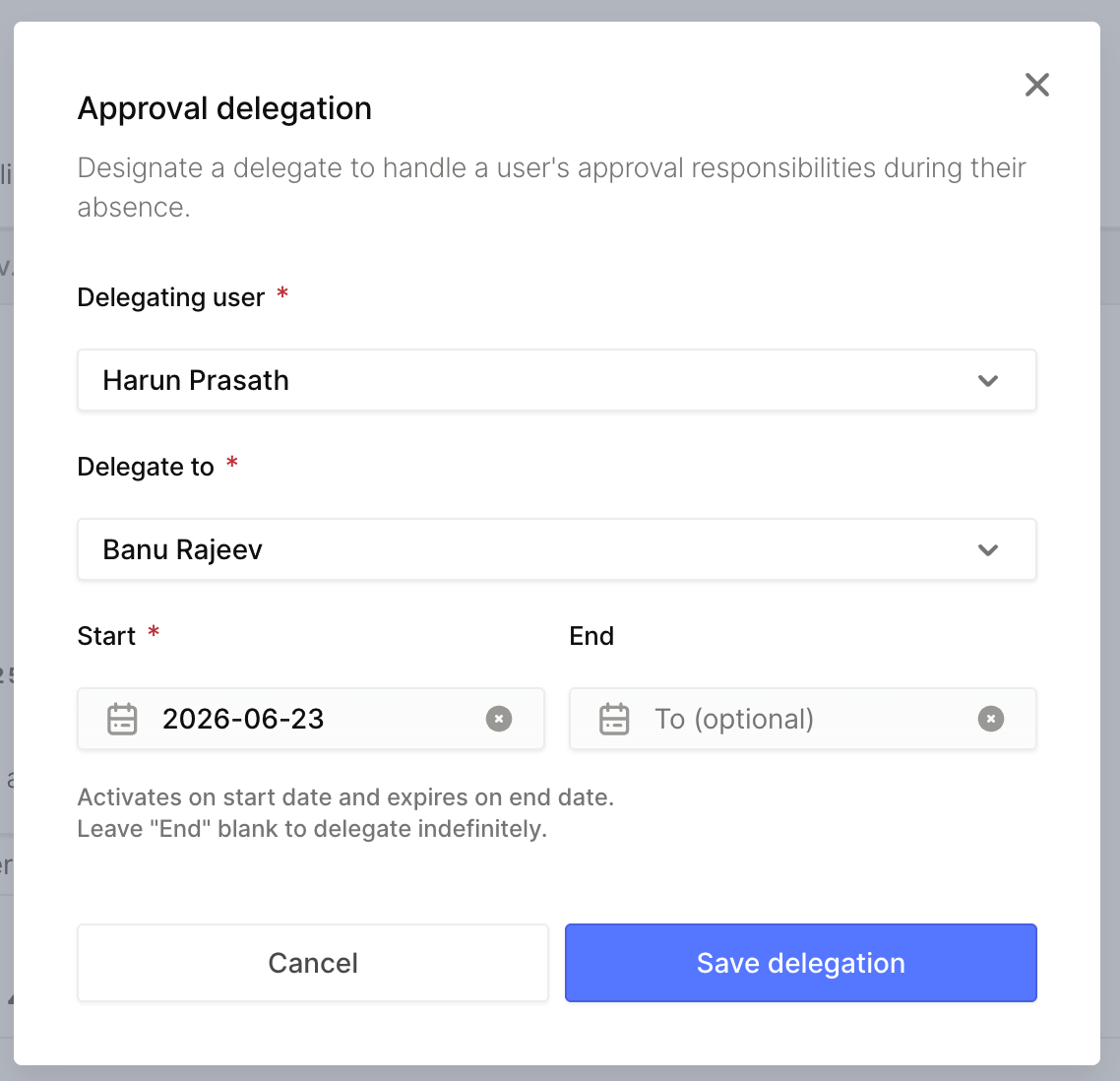
In the delegation modal, select a delegate from the dropdown
Set a start date (you can set a future date if you're planning ahead)
Optionally set an end date — leave it blank to delegate indefinitely
Click Save
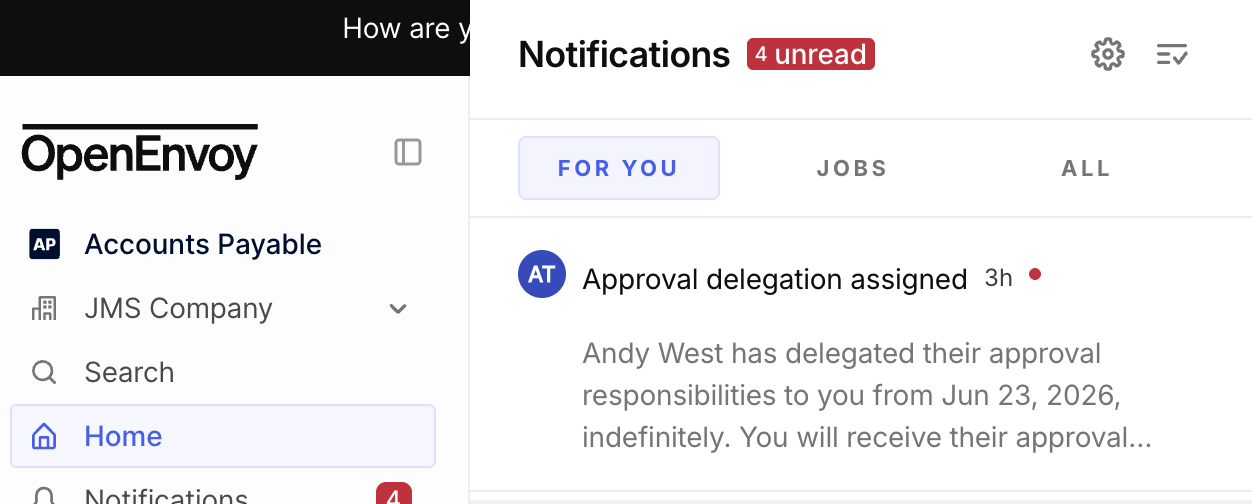
Your delegate will be notified by email and in-app notification.
Admin: Setting a delegate on behalf of a user
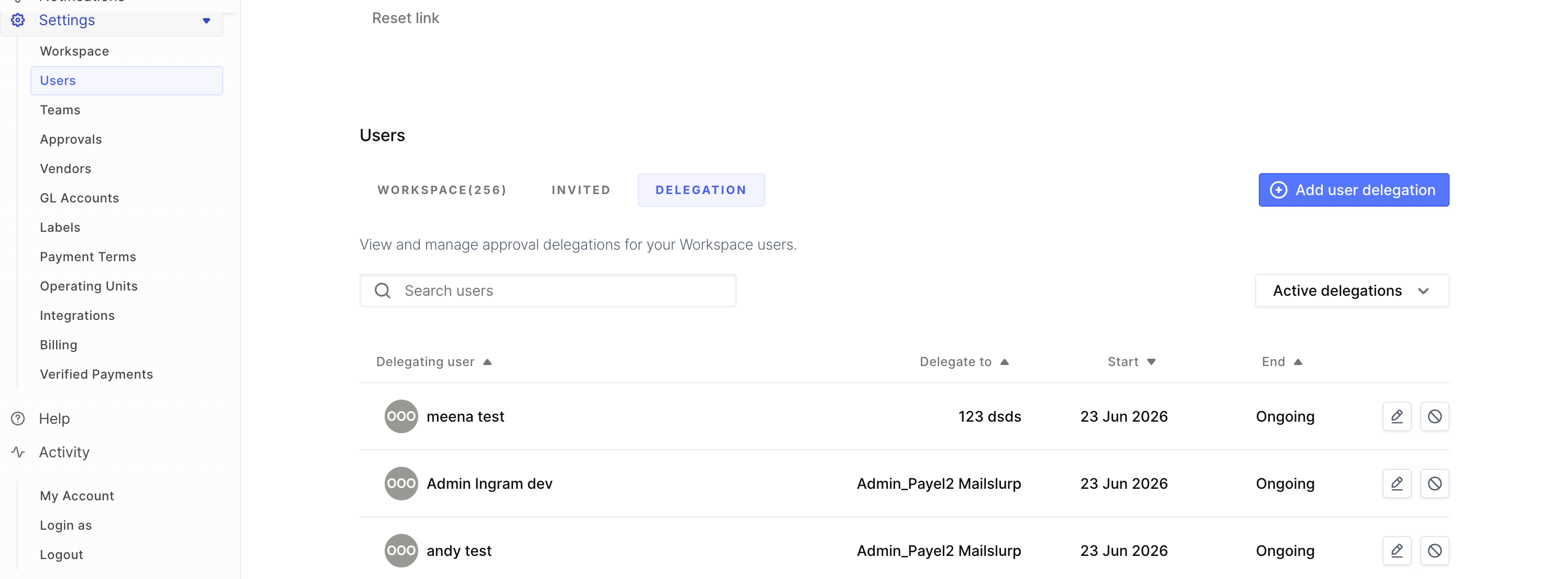
Admins can set up delegations for any user in the workspace.
Go to Settings → Manage Users → Delegation tab
Click Add delegation
Select the delegating user and the delegate
Set the start and end dates
Click Save
Both the delegate and the delegating user are notified.
Scheduling a delegation in advance
Delegations can be set to activate between a scheduled period. Set a future start date and the delegation will automatically activate when that date arrives — no action needed on the day.
What Your Delegate Sees and Can Do
During an active delegation, the delegate sees the delegator's jobs in their approvals queue, clearly labeled "[for Delegator Name]" so they can distinguish delegated jobs from their own.
The delegate can:
Approve or reject jobs on behalf of the original user
Receive notifications — approval requests, priority status changes, and exception alerts that would normally go to the delegating user
View jobs assigned to the delegating user, including jobs in private teams the delegate may not normally have access to
Both the delegate and the original user can act on the same jobs during the active window — delegation is additive, not exclusive.
OOO Indicator
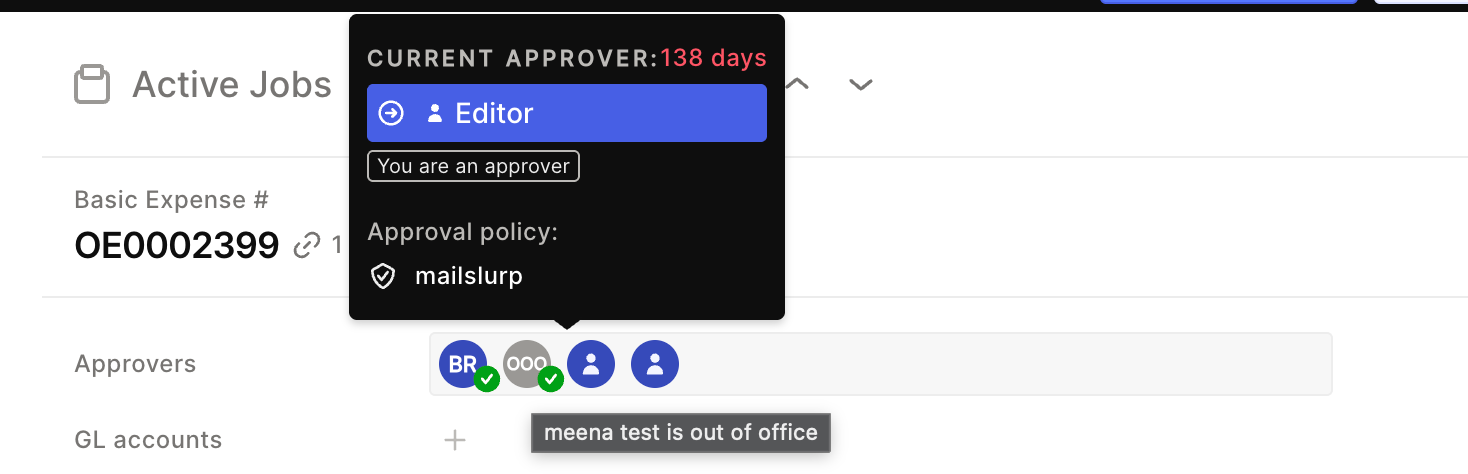
While a delegation is active, the delegating user's avatar changes to an OOO indicator across the app. Hovering over it shows who they've delegated to and the delegation dates.
Approving as a Delegate
When a delegate approves a job, the approval is clearly identified in the UI. The activity log records the action with full attribution:
"Adam approved on behalf of Joe"
This ensures a complete audit trail — you always know who actually clicked approve and on whose behalf.
What Happens When the Delegate's Approval Authority Is Exceeded
If an invoice exceeds the delegate's own approval authority (DOA limit), the system automatically escalates:
First to the delegate's own manager in the approval chain
If unavailable → to the workspace's fallback approval policy
If still unavailable → to the Account Owner
The original delegating user is skipped in the escalation chain since they are out of office.
Ending a Delegation
Either party — the delegating user or the delegate — can end a delegation at any time. Admins can also end delegations from the Delegation tab.
When a delegation ends (manually or by auto-expiry on the end date):
All routing immediately reverts to the original user
Any pending approval steps that were assigned to the delegate are automatically reassigned back
The opposite party is notified
The delegation record is kept for audit reference
Notifications
When this happens | Who is notified | How |
|---|---|---|
User sets their own delegate | Delegate | In-app + Email |
Admin sets a delegation | Delegate + Delegating user | In-app + Email |
Delegation is ended (by either party) | Opposite party | In-app |
Delegation auto-expires on end date | Delegate + Delegating user | In-app + Email |
Managing Delegations (Admins)
Admins can view and manage all delegations from Settings → Manage Users → Delegation tab.
Filter by Active, Expired, or All delegations
Search for specific users
Edit an active delegation (change dates or delegate)
End a delegation from the table using the end icon
Expired delegations are kept as read-only records for reference.
The Users tab also has an "Out of office" filter to quickly identify users with active delegations.
Good to Know
One delegation at a time — Each user can have only one active delegation at a time
Eligible delegates — The delegate must have an approver-eligible role (Admin, Editor, Approver, Leader, or Ops). Contributors and Viewers cannot be selected
No acceptance required — The delegate is notified but doesn't need to accept. Delegation activates automatically on the start date
Open-ended or time-bound — Set an end date for planned leave, or leave it blank to delegate indefinitely until manually ended
Original user retains access — You can still approve your own jobs even while delegation is active. If you return early, you can end the delegation at any time
Immediate handback — When a delegation ends, the delegate's access is removed immediately with no delay
FAQ
Q: What happens to pending approvals when my delegation expires?
Any approval steps currently assigned to your delegate are automatically reassigned back to you.
Q: Can I delegate indefinitely?
Yes. Leave the end date blank when setting up the delegation. It stays active until you or an admin ends it manually.
Q: Can I still approve jobs myself while delegation is active?
Yes. Both you and your delegate can act on your jobs during the active window.
Q: How do I know if I'm currently acting as a delegate for someone?
You'll see their jobs labeled "[for Name]" in your approvals queue. You'll also receive a notification when the delegation is set up.
Q: What if my delegate is also out of office?
You or an admin should end the current delegation and set a new one with a different delegate. The system does not automatically chain to a third person.
Q: Does the delegate see all my jobs?
Only jobs where you are the assigned approver or owner. They don't get blanket access to everything in the workspace.
Need help? Contact support@openenvoy.com.