Duplicate Invoices
Last updated: March 16, 2026
OpenEnvoy automatically identifies duplicate invoices to prevent double payments and ensure accurate billing.
How It Works
Duplicate detection occurs at two stages:
Pre-Extraction Detection
Before processing the invoice content, OpenEnvoy generates a unique fingerprint (hash) of the uploaded document. If this fingerprint matches an existing invoice in your account, the system flags the new upload as a duplicate. No further extraction is performed.
Post-Extraction Detection
After extracting invoice data, OpenEnvoy compares key fields against existing invoices:
Vendor
Invoice number
Total amount due
If all fields match an existing invoice, the job is flagged as a duplicate.
Note: Some accounts may have additional fields configured for duplicate detection based on business requirements.
Duplicate Types
Type | Description |
Hash-based duplicate | Identical document uploaded more than once. Detected before extraction. |
Field-based duplicate | Different document but matching invoice details (vendor, invoice number, amount). Detected after extraction. |
Jobs Not Marked as Duplicate
Jobs in the following statuses are protected from being marked as duplicate by the system:
Matched
Approved / Auto-Approved
What Happens When a Duplicate Is Detected
When an invoice is identified as a duplicate:
The job status changes to Duplicate
The job links to the original invoice for reference
No further processing occurs unless manually resolved
Manually Marking a Job as Duplicate
You can manually mark any job as a duplicate:
Open the job you want to mark as duplicate
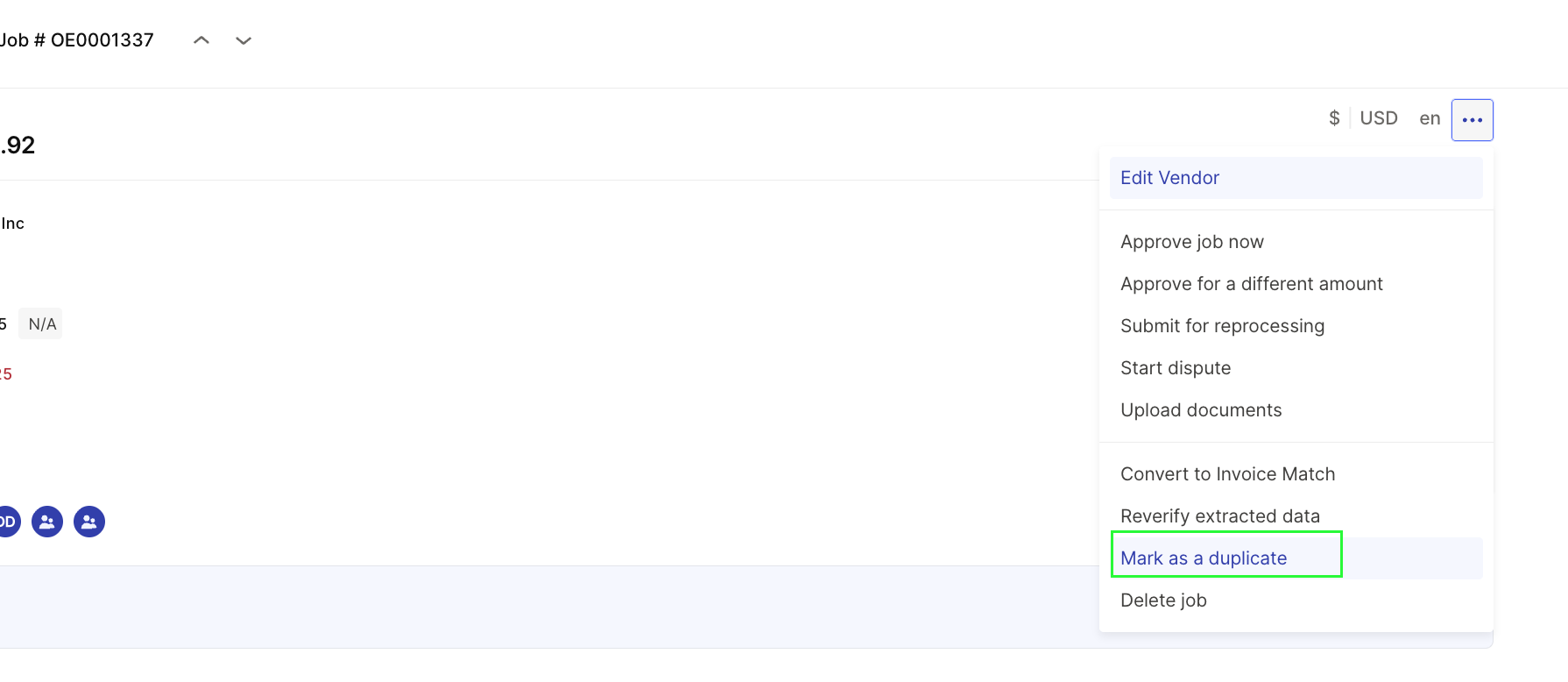
Click the three-dot menu (⋯) in the top right corner
Select Mark as a duplicate
A modal appears showing jobs from the same vendor—use filters to narrow results if needed
Select the original job from the list
Click Set as original to confirm
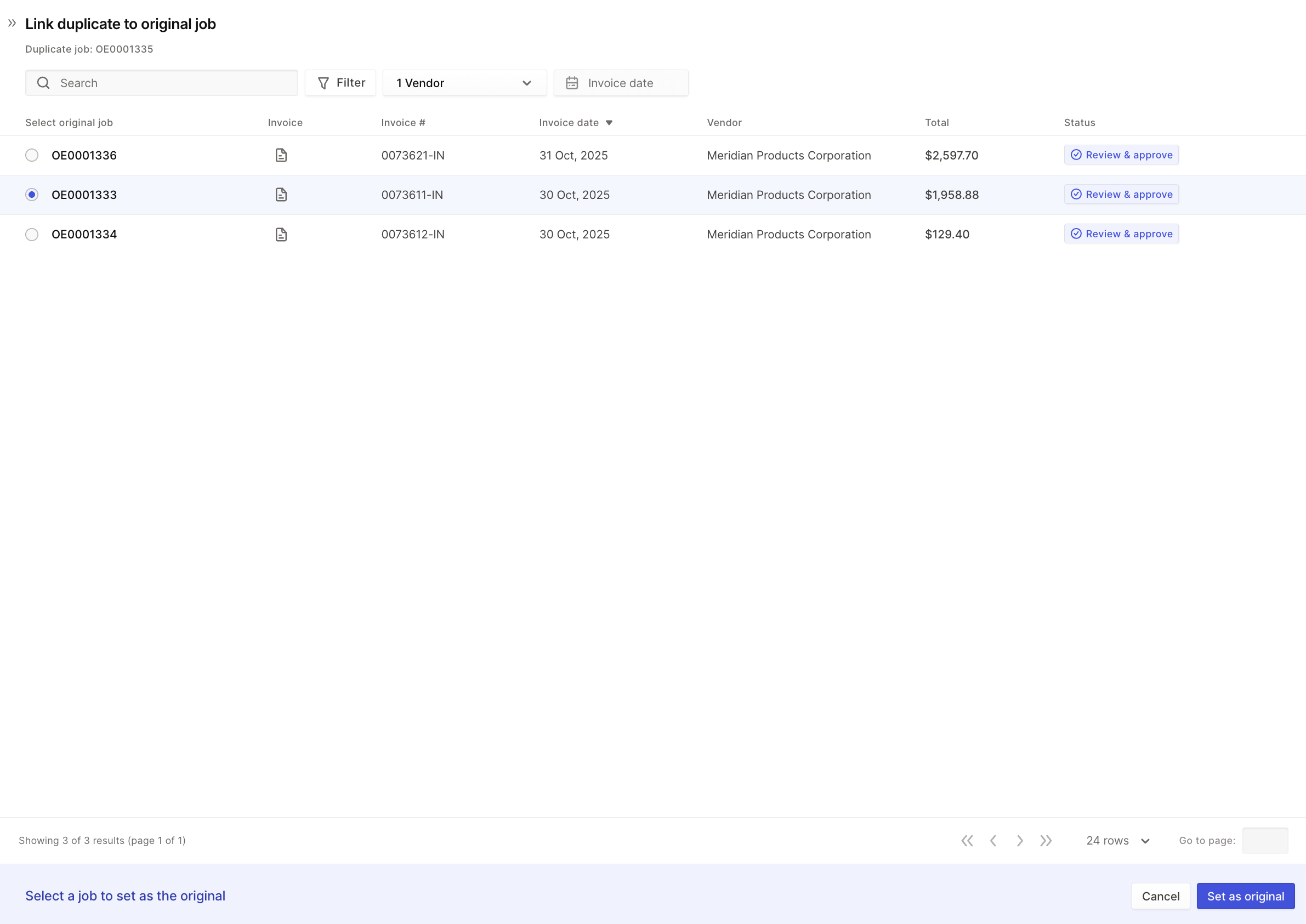
Once linked, the job moves to the Duplicate Jobs list and displays a banner showing which job it was marked as a duplicate of.
Unmarking a Duplicate
If a job was incorrectly marked as a duplicate:
Open the duplicate job
Click the three-dot menu (⋯) in the top right corner
Select Mark as not a duplicate
Confirm by clicking Yes, not a duplicate
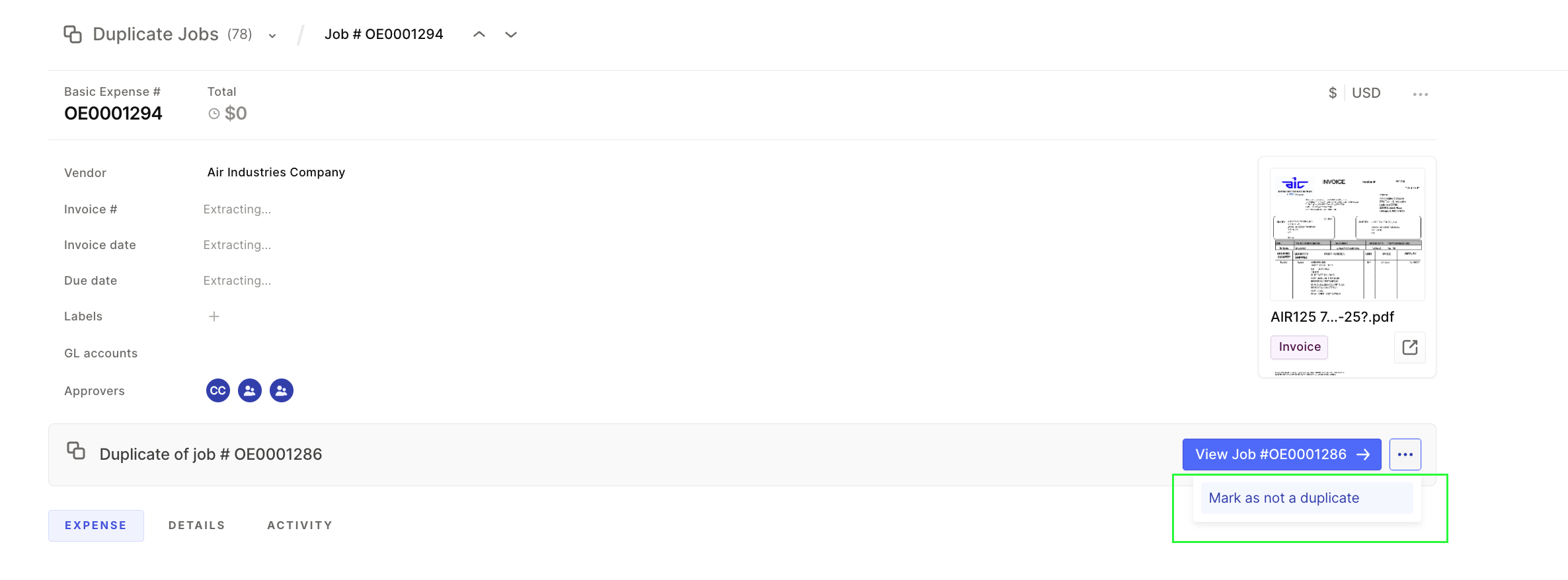
The job returns to Active/Matching status for further processing.