Tax Coding in OpenEnvoy
Last updated: June 25, 2026
Overview
OpenEnvoy captures invoices from customers and needs to assign the correct tax codes before syncing bills to the ERP. Tax codes originate from ERP master data (synced into OE) and are applied at the line-item level based on invoice structure and item type. This article explains how tax coding works, where it is applied, how codes are resolved, and what causes a bill to be blocked.
1. Source of tax codes
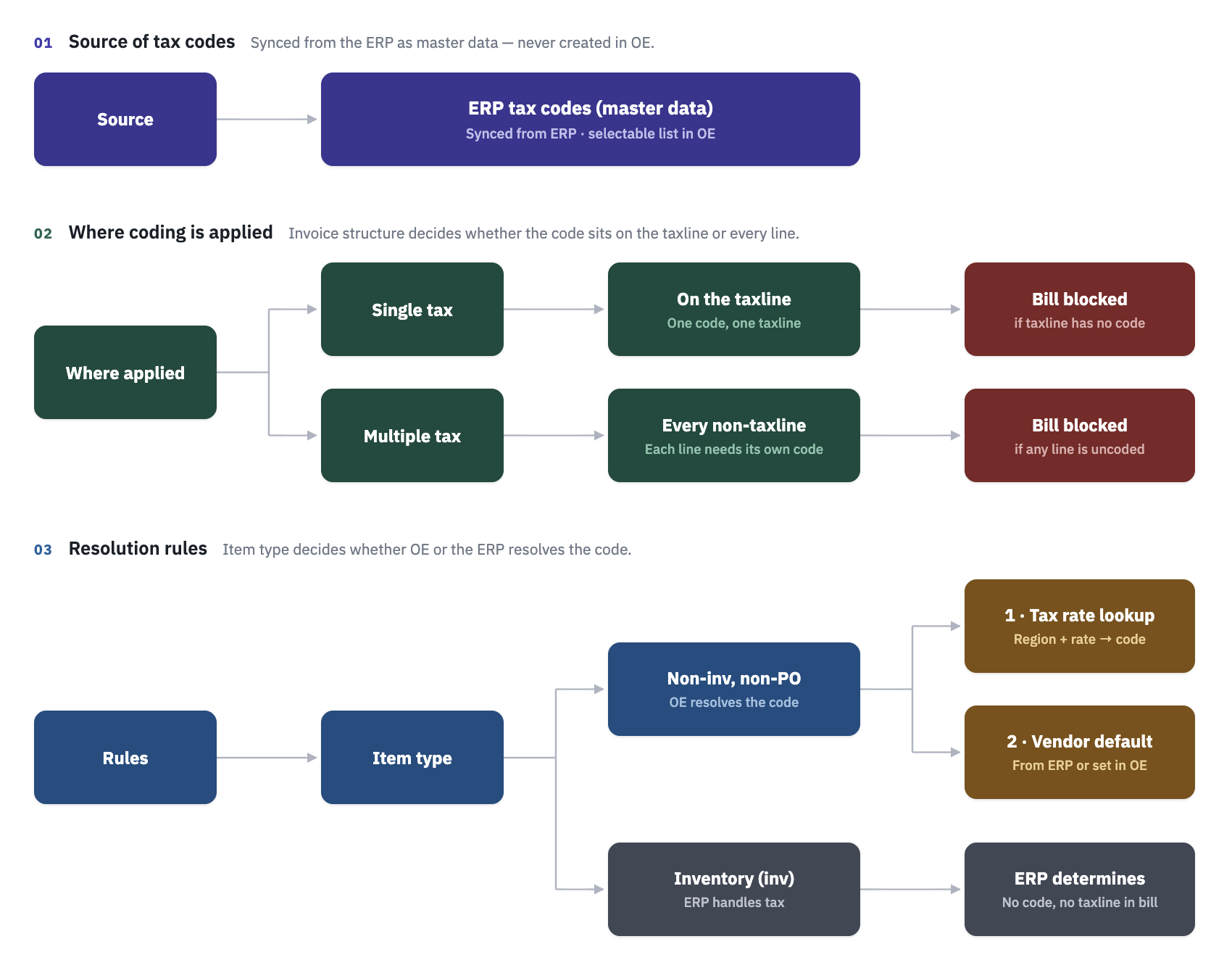
Tax codes are master data from the ERP — they are not created manually inside OpenEnvoy. OE syncs available tax codes from the connected ERP or via file export and makes them available as a selectable list within the product.
This means:
Tax codes in OE always reflect what exists in the ERP.
If a new tax code is needed, it must be created in the ERP first and re-synced, or a new file export must be provided to OE.
2. Where tax coding is applied
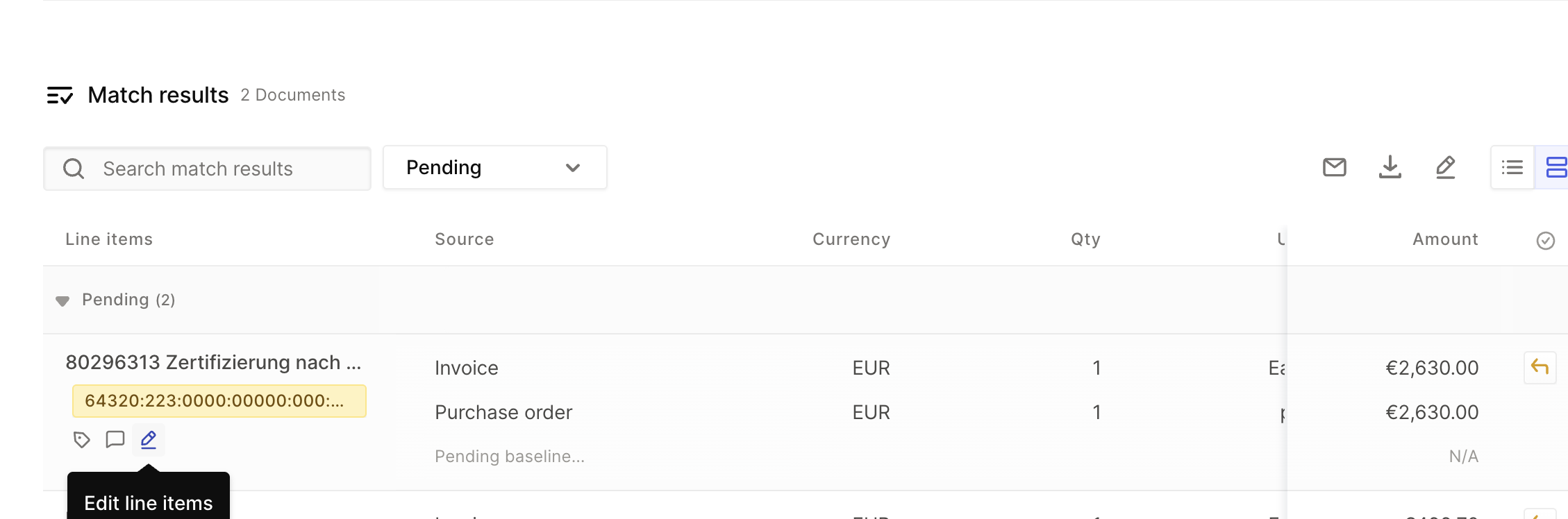
Tax coding in OE operates in one of two modes depending on the invoice structure. To add, click on Edit line items to update the Tax Code field.
Single tax
A single tax code is applied at the taxline level (i.e. line has label Taxline). There is one tax line on the invoice, and that taxline carries the tax code. This is the simpler mode and is common in domestic invoices.

Multiple tax
When an invoice has more than one taxline (common in EU jurisdictions where multiple VAT rates or levies apply), OE operates in multiple tax mode. In this mode:
Every non-taxline (i.e. regular expense or item lines) must carry its own tax code.
Taxlines themselves do not require a tax code in this mode — they represent the computed tax amounts, not the classification.
This is necessary because OE cannot determine which tax rate applies to any given line without an explicit code on that line.
3. Tax code resolution/Auto-coding rules
Resolution depends on the item type of the line.
Inventory (inv) lines
For inventory-type lines, the ERP determines the tax treatment entirely. OpenEnvoy sends no tax code and no taxline in the bill payload for these lines. The ERP handles tax on its end based on its own item master configuration.
Non-inventory, non-PO lines
For non-inventory, non-PO lines, OE provides solutions for autocoding the tax code. Resolution follows this priority:
Tax rate lookup — a rule-based lookup using region and tax rate. Rules can be customised per customer if clearly defined, but the standard pattern is: region + applicable tax rate → tax code.
Vendor default — the default tax code configured for that vendor. This can be pulled from ERP vendor master data if available, or set directly within OE.
4. Manual correction in OE
Reviewers can manually assign or correct a tax code on any line item directly in the OpenEnvoy UI. Each line has a tax code field with a dropdown populated from the synced ERP tax codes. This allows reviewers to fix missing or incorrect codes before releasing a bill.
5. Blocking conditions
A bill will be blocked from syncing to the ERP if tax code conditions are not met.
Single tax mode
Bill is blocked if a taxline is present but has no tax code assigned to it.
Multiple tax mode
Bill is blocked if any non-taxline (expense or item line) is missing a tax code.
In both cases, the reviewer must resolve the missing code via the manual edit dropdown before the bill can proceed.
Quick reference
Scenario | What OE does |
|---|---|
Inventory line | Sends no tax code; ERP determines tax |
Non-inv/non-PO, vendor default available | Applies vendor default tax code |
Non-inv/non-PO, no vendor default | Performs tax rate + region lookup |
Missing code on taxline (single tax) | Bill blocked |
Missing code on any non-taxline (multi tax) | Bill blocked |
Reviewer corrects a line | Dropdown selection from ERP-synced listTax Coding in OpenEnvoy |