Reopening a Matched or Approved Job
Last updated: July 30, 2026
Sometimes a job that's been Matched or Approved needs to come back for corrections — a wrong GL code, a failed ERP sync, an accidental approval, or data that needs to be fixed before it reaches your ERP. Reopening a job lets you pull it back, make the necessary edits, and send it through approval again.
Why Would I Need to Reopen a Job?
There are several common scenarios where reopening is necessary:
Sync failures — The job was approved but failed to sync to your ERP. Common causes include an invalid or missing GL code, a vendor mapping error, a missing required field, or a data format issue that the ERP rejected. The sync status on the job will show as Failed or Blocked, and the job cannot complete until the underlying issue is fixed.
Incorrect data caught after approval — A wrong GL code, incorrect line amounts, or an incorrect vendor assignment was noticed after the job was already approved. Since completed jobs cannot be edited directly, reopening is the only way to make corrections.
Accidental approval — A job was approved prematurely — before all data was verified, before an exception was investigated, or before the correct approver reviewed it.
When Can a Job Be Reopened?
Reopening is only available when the job has not yet been synced to your ERP. Here's the breakdown:
Sync Status | Can Reopen? | Why |
|---|---|---|
Not started | ✅ Yes | Sync hasn't been initiated — safe to reopen and edit |
On hold | ✅ Yes | Sync is paused (e.g., Bill Creation is turned off) — safe to reopen |
Failed | ✅ Yes | Sync was attempted but the ERP rejected it — reopen, fix the issue, and re-approve |
Blocked | ✅ Yes | Sync cannot proceed due to a data or configuration issue — reopen and correct |
Syncing | ❌ No | Job data has already been sent to the ERP and OpenEnvoy is waiting for confirmation. You must wait for the sync to either succeed or fail before taking action |
Synced | ❌ No | The data has been sent to the ERP and a bill has been created. The job cannot be reopened in OpenEnvoy |
Why can't I reopen a job that's Syncing?
When a job is in Syncing status, OpenEnvoy has already sent the job data to your ERP and is waiting for confirmation that the bill was created. At this point the job is in a handoff state between the two systems. If the ERP successfully creates the bill, the job moves to Synced. If bill creation fails, the job moves to Failed — and at that point you can reopen it, fix the issue, and re-approve.
If you see a job stuck in Syncing status for an extended period, contact support — there may be a connectivity or ERP-side issue preventing the confirmation from coming back.
Why can't I reopen a Synced job?
Once a job is Synced, the corresponding vendor bill (or credit) has been created in your ERP. Reopening the job in OpenEnvoy would create a mismatch between the two systems. Any corrections to a synced job need to be handled directly in your ERP, or by coordinating with your ERP admin and OpenEnvoy support.
How to Identify Jobs That Need Reopening
Sync Status Column
The job list includes a Sync Status column that shows the current sync state of each job. You can add this column from the ⚙ settings icon on the job list if it's not already visible.
Filter or sort by sync status to quickly find jobs that failed sync and need attention.
On the Job Page
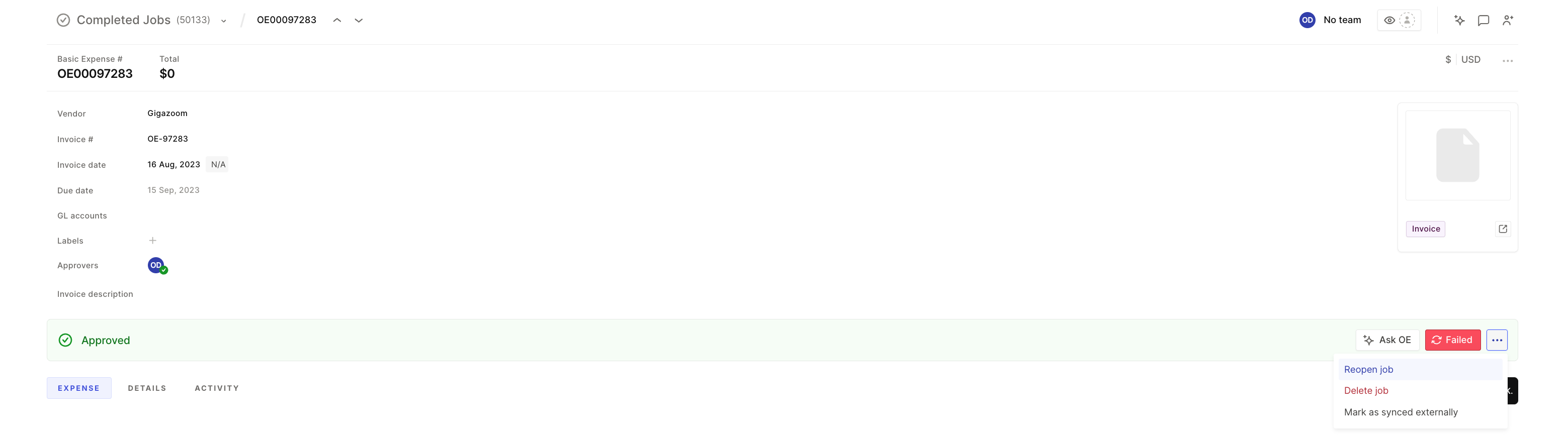
When a sync issue is present, the job banner displays the sync status and the specific error returned by the ERP. A ⋯ menu appears with the option to reopen the job.
[Screenshot: Job banner showing a failed sync status with the ERP error message and the reopen option in the ⋯ menu]
How to Reopen a Job
Only users with Admin or Editor roles can reopen jobs.
Open the job that needs to be reopened
Click the ⋯ menu on the job banner
Select Reopen job
In the reopen modal:
Select a reason for reopening (this is recorded in the activity log for audit purposes)
Add a comment (optional but recommended) — helps the new owner understand what needs to be fixed
5. Click Reopen
What Happens When You Reopen a Job
Reopening a job triggers several changes:
The job status resets to Pending. The job moves back to a special Pending state specifically for reopened jobs. A banner appears on the job with a Start Approval button as the primary action.
All previous approvals are reset. Any approvals that were completed on the job are cleared. The job must go through the full approval process again from scratch after edits are made.
The job becomes editable again. You can now edit all fields that are normally editable on an active job — GL codes, line items, quantities, labels, vendor, PO number, invoice description, and other job details.
Sync is reset. The job will not attempt to sync to your ERP while it's in the reopened Pending state. Sync only resumes after the job is re-approved (or re-matched and re-approved).
Activity log records the reopen. The reason for reopening, who reopened it, the comment, and the timestamp are all captured in the job's activity log for full audit traceability.
Workflows re-evaluate. When you resubmit the job (after making edits), applicable workflows will re-run — including assignment, categorization, and threshold workflows.
After Reopening: What to Do Next
Once the job is reopened and edits are made:
Make your corrections — Fix the GL code, update line items, change the vendor, or resolve whatever caused the sync failure or data issue
Submit for rematching (if needed) — If you changed data that affects matching (PO number, line items, quantities), submit for rematching
Re-approve — If not auto approved or matched, click Start Approval on the banner. The job goes back through your approval policy from the beginning. All configured approval steps must be completed again
The job then syncs to your ERP as normal once it reaches Matched or Approved status.
Important Considerations
Reopening resets the full approval chain. Even if only a minor edit was needed, all approval steps must be completed again. This is by design — since sensitive data may have changed, the approval process ensures proper review.
Owner assignment matters. When reopening, make sure you assign ownership to the person who will actually make the corrections. The comment field helps provide context so they know what needs to be fixed without guessing.
Check the ERP error before editing. For failed syncs, the error message on the job banner tells you exactly what the ERP rejected. Read it carefully before reopening — it will point you to exactly what needs to be fixed (e.g., "GL account 5100 does not exist in subsidiary ABC").
FAQ
Q: The job is stuck in Syncing status. Can I reopen it?
No. The job data has already been sent to your ERP and OpenEnvoy is waiting for confirmation. You must wait for the sync to either succeed (Synced) or fail (Failed). If it's been stuck for an unusually long time, contact support@openenvoy.com with the job number.
Q: The job synced successfully but the data in my ERP is wrong. Can I reopen it?
No. Once a job is Synced, a bill has been created in your ERP and the job cannot be reopened in OpenEnvoy. Corrections need to be handled directly in your ERP. Contact your ERP admin or reach out to support@openenvoy.com for guidance.
Q: Who can reopen a job?
Users with Admin or Editor roles. Approvers and Viewers cannot reopen jobs.
Q: Will the job keep its original approval history?
The original approval history is preserved in the activity log for audit purposes, but the approval chain itself is fully reset. The job must be re-approved from scratch as possibly the data is changed.
Q: I reopened a job but didn't change anything. Do I still need to re-approve?
Yes. Once reopened, the job is in Pending status and must go through the full approval process again regardless of whether edits were made if not auto approved.
Q: Can I reopen multiple jobs at once using bulk actions?
No. Reopening requires a reason, owner selection, and an optional comment for each job — it must be done individually.
Q: What if the sync failure keeps happening after I reopen and re-approve?
Check the sync error message on the job banner for specific details. Common recurring causes include GL codes that don't exist in your ERP, vendor records that aren't mapped, or required fields missing in the ERP configuration. If the error persists, contact support@openenvoy.com with the job number and error details.
Need help? Contact support@openenvoy.com.