Approval Settings
Last updated: July 29, 2026
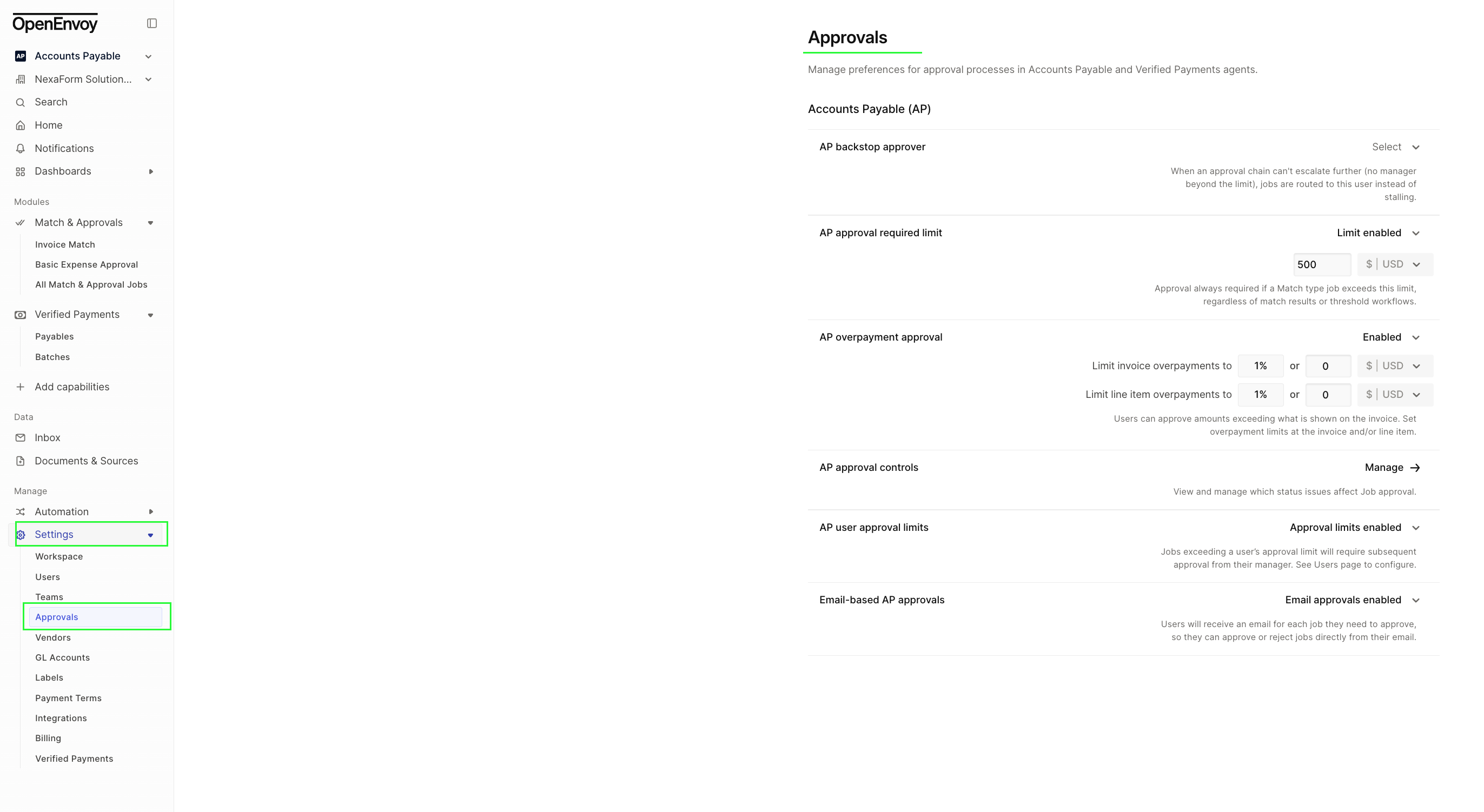
The Approval Settings page lets you manage preferences for approval processes across your workspace. It controls how approvals are routed, what limits apply, and how users interact with the approval workflow. Only Admins can access and modify these settings.
How to Access Approval Settings
In the left navigation panel, click Settings
Click Approvals
The full URL path is: app.openenvoy.com/<your-workspace>/settings/approvals
Admin access required. Only users with the Admin role can view and modify Approval Settings. If you don't see this option, contact your workspace admin.
Accounts Payable (AP)
These settings control how invoice approvals work across your Accounts Payable workflow.
AP Backstop Approver
What it does: Designates a fallback user who receives jobs when the approval chain can't escalate any further — for example, when there's no manager above the current approver in the DOA (Delegation of Authority) chain, or when the approval policy can't resolve to a valid approver.
Without a backstop approver, these jobs would stall indefinitely. The backstop approver acts as the final safety net.
How to configure: Click the Select dropdown and choose a user. The selected user must have an Admin or Approver role with All Jobs access.
Default: Account Owner
Tip: If the designated backstop approver is deactivated or loses their qualifying access, a warning will appear on this setting. Update it immediately to prevent jobs from stalling.
AP Approval Required Limit
What it does: Forces approval on any Match job whose total exceeds the configured dollar threshold — regardless of match results or threshold workflows. Even if a threshold workflow would normally auto-approve the job, this limit overrides it and requires manual approval.
This is a hard ceiling to ensure high-value invoices always get human review.
How to configure:
Toggle between Limit enabled and Limit disabled
When enabled, enter the dollar amount and select the currency
Example: Setting this to $500 USD means any Match job over $500 will always require approval
Default: Disabled
AP Overpayment Approval
What it does: Controls whether approvers can approve invoices for amounts that exceed what was matched from the PO or baseline. When enabled, you set tolerance limits — if the overpayment falls within the tolerance, the approver can proceed. If it exceeds the tolerance, approval is blocked.
Tolerances can be set at two levels independently:
Invoice-level overpayment limit — Maximum overpayment allowed on the total invoice amount (as a percentage, a dollar amount, or both — whichever is reached first)
Line-item-level overpayment limit — Maximum overpayment allowed on any individual line item
How to configure:
Toggle between Enabled and Disabled
When enabled, set the percentage and/or dollar amount for invoice-level and line-item-level tolerances
Example: Setting invoice overpayments to 1% or $0 means overpayments beyond 1% of the invoice total (or $0, whichever threshold is hit first) will be blocked
Default: Disabled
Note: This setting controls the approval workflow only. It does not affect payment execution — even if an overpayment is approved, payment processing is handled separately.
AP Approval Controls
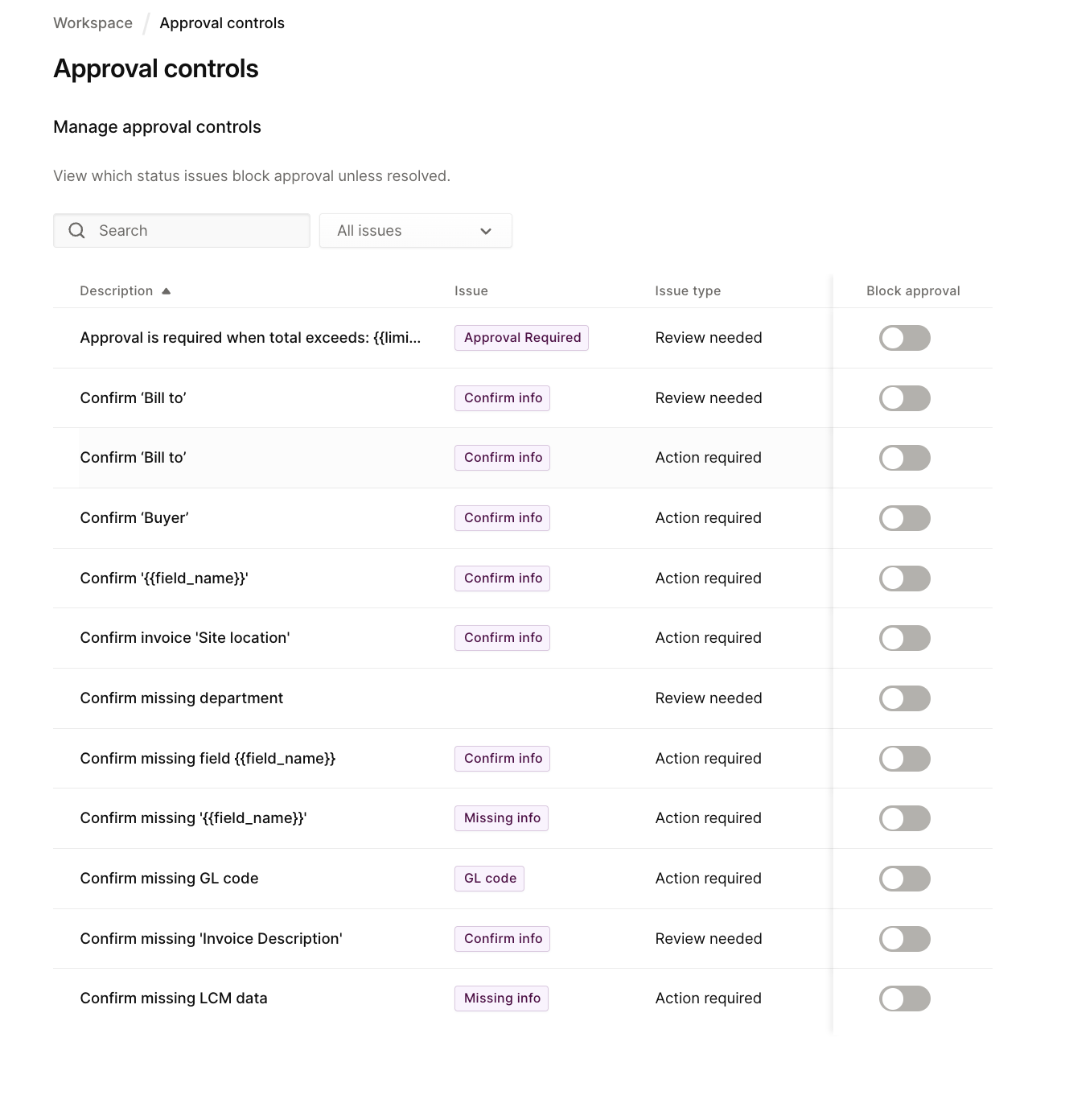
What it does: Lets you view and manage which status issues block job approval. Status issues are conditions on a job that may need resolution before approval can proceed — for example, missing GL codes, missing invoice description, unresolved matching exceptions, or missing labels.
Click Manage → to open the full list of status issues and toggle which ones should block approval for your workspace.
How it works: When a blocking status issue is present on a job, the approval button is disabled and the job's status panel shows the issue that needs resolution. Once the issue is resolved, the block clears and approval can proceed.
AP User Approval Limits
What it does: Enables Delegation of Authority (DOA) — dollar-based approval limits assigned to individual users. When a job's total exceeds a user's personal approval limit, the job automatically escalates to their manager for additional approval.
How to configure:
Toggle between Approval limits enabled and Approval limits disabled
When enabled, individual user limits are configured on the Settings → Users page (each user has an approval limit field)
How escalation works: If a job exceeds the current approver's limit, it moves to their designated manager. If the manager's limit is also exceeded, it continues up the chain. If the chain can't resolve (no manager above the limit), the job routes to the AP backstop approver.
Email-Based AP Approvals
What it does: When enabled, users receive an email notification for each job that requires their approval. The email includes job details and Approve / Reject buttons — allowing approvers to take action directly from their email without logging into OpenEnvoy.
How to configure: Toggle between Email approvals enabled and Email approvals disabled.
This is particularly useful for approvers who aren't in the OpenEnvoy app daily but need to keep invoices moving through the approval queue.
FAQ
Q: A job is stuck in approvals and no one can approve it. What's happening?
Check whether the approval chain has reached its end without resolving. If no backstop approver is set, the job will stall. Go to Settings → Approvals → AP backstop approver and assign a valid user.
Q: My threshold workflow should have auto-approved this job, but it went to manual approval. Why?
Check the AP approval required limit. If the job's total exceeds this limit, it will always require manual approval regardless of threshold workflows.
Q: An approver says they can't approve a job — the button is greyed out.
The job likely has a blocking status issue (e.g., missing GL code, missing invoice description). Check the job's status panel to see what needs resolution, or review the blocking conditions in AP approval controls → Manage.
Q: How do I set individual approval limits for my users?
First enable AP user approval limits on this page. Then go to Settings → Users, find the user, and set their approval limit amount. When a job exceeds their limit, it escalates to their designated manager.
Q: Can approvers take action from email without logging in?
Yes, if Email-based AP approvals is enabled. Approvers receive emails with Approve and Reject buttons and can act directly from their inbox.
Q: What's the difference between the backstop approver and the fallback approval policy?
The fallback approval policy (configured in Workspace Settings) determines the default approval policy for jobs not matched by any workflow. The backstop approver is the last-resort person who receives jobs when the approval chain itself can't resolve — they're different layers of the same safety net.
Need help? Contact support@openenvoy.com.