Invoice Description Enrichment
Last updated: July 29, 2026
The Invoice Description field carries a short description of the invoice that syncs back to your ERP — typically a PO number, account number, or payment reference. OpenEnvoy auto-populates this field based on your company's configuration, but it can be manually edited at any time. If left blank, it blocks the approval workflow until a value is entered.
What is Invoice Description?
Invoice Description is a text field that appears on the job header in OpenEnvoy. It holds a brief description of the invoice — for example, a PO number for purchase order invoices or an account number for non-PO invoices. When the invoice syncs to your ERP, this value is written back as the description or memo line.
This field was previously labelled Memo across the app. The label has been updated to Invoice Description everywhere, but the behaviour and ERP sync are unchanged.
Why it matters: For most ERPs, this field is what appears on a printed cheque, payment advice, or remittance detail. Leaving it blank or incorrect isn't just a UI issue — it can cause downstream payment processing problems.
How Auto-Population Works
OpenEnvoy automatically fills in the Invoice Description when a job is created, using a template configured for your company. The template pulls data from the invoice — such as the PO number, account number, vendor name, or invoice date — and assembles a description string.
Your company can have different templates for different job types:
Job Type | Typical Auto-Populated Value |
|---|---|
Match (PO-backed invoices) | PO number from the invoice (e.g., "From PO# 200012345") |
Basic (non-PO invoices) | Account number from the invoice (e.g., "Pay to 7890-001") |
The auto-populated value is fully editable — you can manually override it on the job header before or during approval. Any manual edit is preserved and synced back to your ERP.
Approval Blocking Behaviour
Invoice Description is a required field. If it has no value when an approver tries to advance a job, the approval process halts and the job enters a pending or blocked state. It stays there until a user fills in the field.
When a job is blocked for this reason, you'll see a "Missing Invoice Description" item in the job's status panel — similar to other pre-approval checks like missing GL codes or labels.
How to Resolve a Blocked Job
1. Find the blocked job
The job will show a "Pending" or blocked status. The status panel displays a "Missing Invoice Description" item.
2. Open the job header
The Invoice Description field is editable directly on the job header page. Click the field to edit.
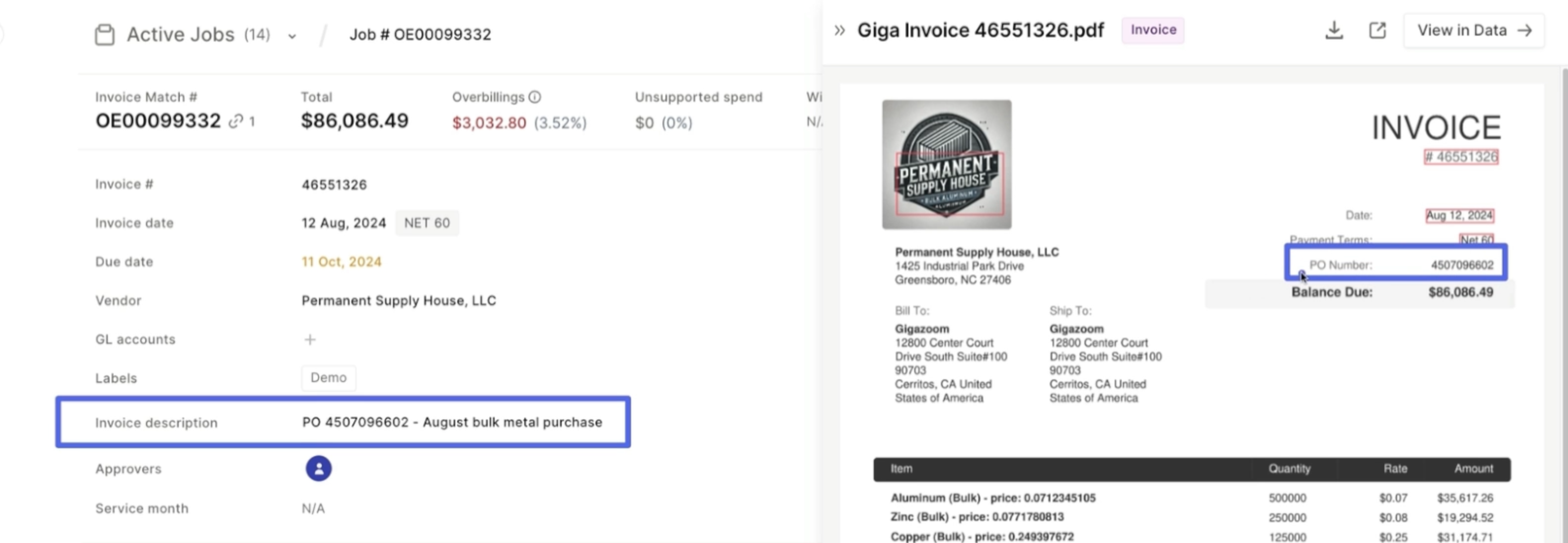
3. Enter a value and save
Any non-blank value clears the block. The job status updates immediately and approval can proceed.
What Gets Auto-Populated
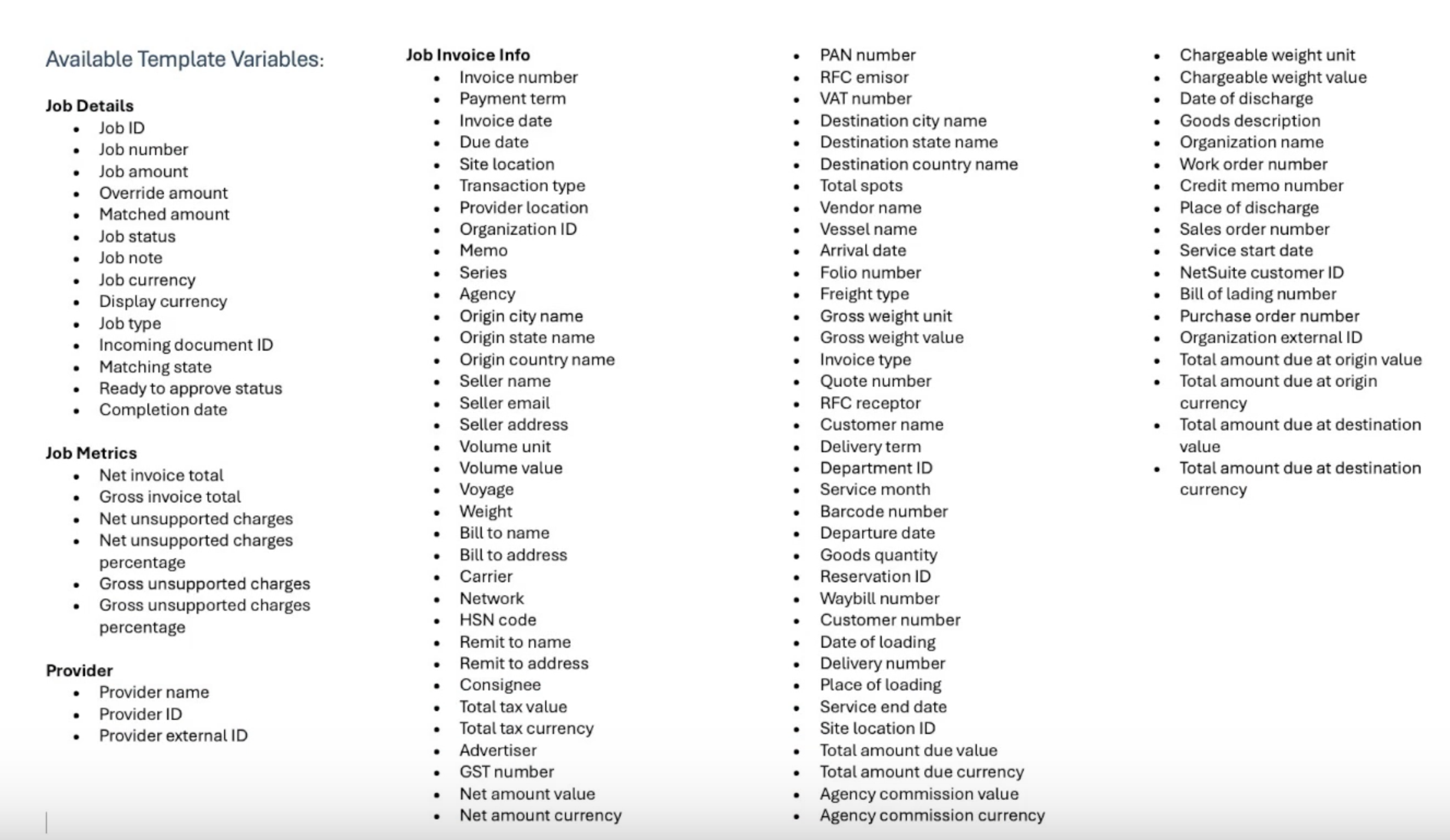
The template can include any combination of data extracted from the invoice. Common fields used in templates include:
PO number — The purchase order number referenced on the invoice
Account number — The account or customer number
Invoice number — The supplier's invoice number
Invoice date — The date on the invoice
Vendor name — The name of the supplier
Sales order / Work order number — Reference numbers from the invoice
Service month — The billing period
Delivery number — Shipping or delivery references
Your company's template determines exactly which fields appear and in what format. The template can combine multiple fields with static text (e.g., "PO# 2000012345 — June 2026").
Customizing Your Template
Invoice Description templates are configured per company. You can customize:
The template for Match jobs, Basic jobs, or both
Which invoice fields are included and in what order
Whether the feature is enabled or disabled for your company
Static text mixed with dynamic invoice data
To request a change to your Invoice Description template, contact your Customer Success Manager or reach out to support@openenvoy.com with:
Your company name
The desired format for Match and/or Basic jobs (e.g., "PO# [PO number] — [Invoice date]")
Whether the field should remain required or be made optional
FAQ
Q: Why is my job stuck in Pending with "Missing Invoice Description"?
The Invoice Description field is empty and approval can't proceed until it has a value. Open the job, click on the Invoice Description field in the job header, enter a value, and save. The block clears immediately.
Q: Can I turn off the approval blocking?
Yes — the requirement can be disabled for your company. Contact your Customer Success Manager or support@openenvoy.com to request this change.
Q: I see "Memo" in some places and "Invoice Description" in others. Are they the same thing?
Yes. The field was renamed from Memo to Invoice Description. The underlying data and ERP sync behaviour are identical. If you see both labels, they refer to the same field.
Q: Can I manually edit the auto-populated value?
Yes. The auto-populated value is a starting point. You can edit it at any time on the job header before or during approval. Your manual edit is preserved and synced to the ERP.
Q: Does this value sync to my ERP?
Yes. Whatever is in the Invoice Description field at the time of sync is written back to your ERP. For most systems, this appears on cheques, payment advice, and GL references.
Q: My template is pulling the wrong data. How do I fix it?
Contact your Customer Success Manager or support@openenvoy.com. Provide your company name and the desired format, and the team will update your template configuration.
Need help? Contact support@openenvoy.com.